> ## Documentation Index
> Fetch the complete documentation index at: https://getsoda.app/docs/llms.txt
> Use this file to discover all available pages before exploring further.
# Workspaces
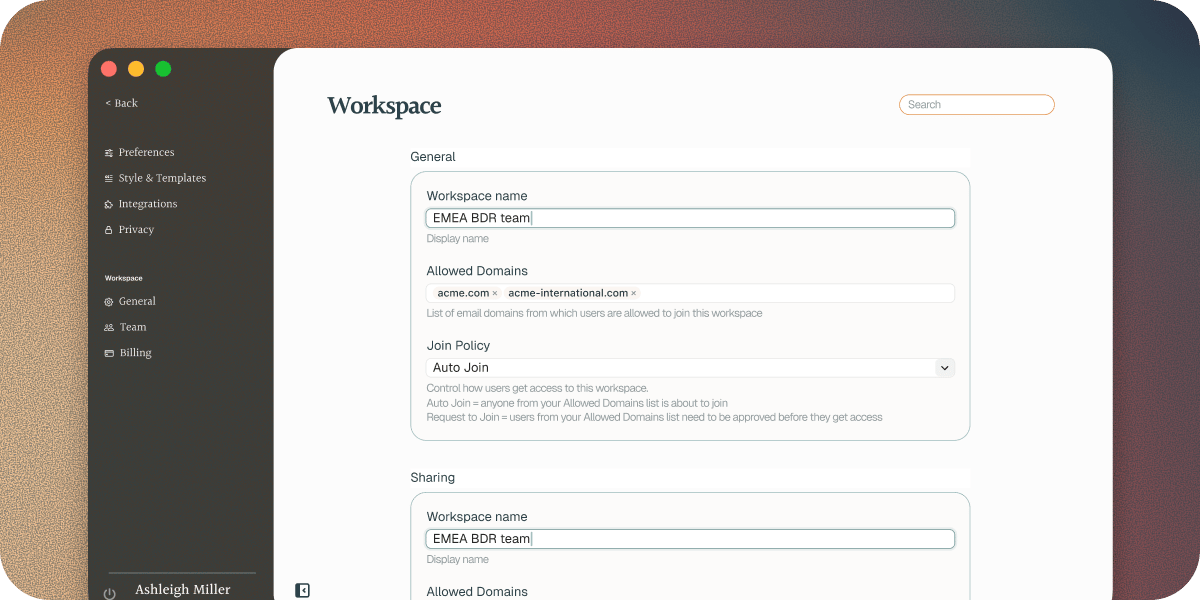
A workspace is your team in Soda. Everyone gets one when they sign up, but until you invite someone it's just for you. An admin can rename it in **Settings** > **Workspace** > **General**.
Being in a workspace shares nothing by itself. Your memory stays yours until you share it. See [What your team can see](/docs/account/what-your-team-can-see).
## Admins and members
* **Admin** manages the workspace settings, join requests, roles, and who's in the workspace.
* **Member** sees the **Team** list, and uses Soda as normal.
Members only see the **Team** page under **Workspace** in Settings, **Billing** and **General** are not visible.
## How people join
Anyone in the workspace can invite a teammate. People with an email address at one of your **Allowed Domains** can also join when they sign up. **Join Policy** decides how:
* **Auto Join** lets them in straight away.
* **Request to Join** waits for an admin to approve them. This is the default.
Admins set both in **Settings** > **Workspace** > **General**.
 ## Invite a teammate
Go to **Settings** > **Workspace** > **Team** and click **Invite Teammate**. See [Set up your team](/docs/getting-started/set-up-your-team) for the steps.
* They join as a member. An admin can make them an admin later.
* An invite lasts 7 days.
* You can invite people whose email isn't at one of your **Allowed Domains**.
## Approve a request to join
When someone asks to join, a **Requested Access** row appears in the **Team** page. An admin clicks it, then clicks **Approve** or **Decline**. Admins also get an email with the same buttons.
## Change a role
In **Team**, choose **Admin** or **Member** next to the person's name. If you change your own role to **Member**, Soda asks you to confirm, because you'll lose admin access. A workspace always keeps at least one admin.
## Remove someone
In **Team**, choose **Remove Access** from the menu on their row. When you remove someone:
* They get their own workspace, and keep their memory.
* Anything teammates shared with them is taken back.
* Anything they shared with the team stays.
## Next steps
Bring your team into Soda.
Your memory is yours until you share it.
This documentation is built and hosted on [Mintlify](https://mintlify.com), a developer documentation platform.
## Invite a teammate
Go to **Settings** > **Workspace** > **Team** and click **Invite Teammate**. See [Set up your team](/docs/getting-started/set-up-your-team) for the steps.
* They join as a member. An admin can make them an admin later.
* An invite lasts 7 days.
* You can invite people whose email isn't at one of your **Allowed Domains**.
## Approve a request to join
When someone asks to join, a **Requested Access** row appears in the **Team** page. An admin clicks it, then clicks **Approve** or **Decline**. Admins also get an email with the same buttons.
## Change a role
In **Team**, choose **Admin** or **Member** next to the person's name. If you change your own role to **Member**, Soda asks you to confirm, because you'll lose admin access. A workspace always keeps at least one admin.
## Remove someone
In **Team**, choose **Remove Access** from the menu on their row. When you remove someone:
* They get their own workspace, and keep their memory.
* Anything teammates shared with them is taken back.
* Anything they shared with the team stays.
## Next steps
Bring your team into Soda.
Your memory is yours until you share it.
This documentation is built and hosted on [Mintlify](https://mintlify.com), a developer documentation platform.