> ## Documentation Index
> Fetch the complete documentation index at: https://getsoda.app/docs/llms.txt
> Use this file to discover all available pages before exploring further.
# Choose which apps Soda listens to
Soda listens to calls in six apps, and you can turn any of them off. All six are on to start with.
Click your name at the bottom of the Soda sidebar, then choose **Settings**.
Click **Privacy**.
The switches are **Google Meet**, **Zoom**, **Microsoft Teams**, **Slack**, **WhatsApp**, and **FaceTime**.
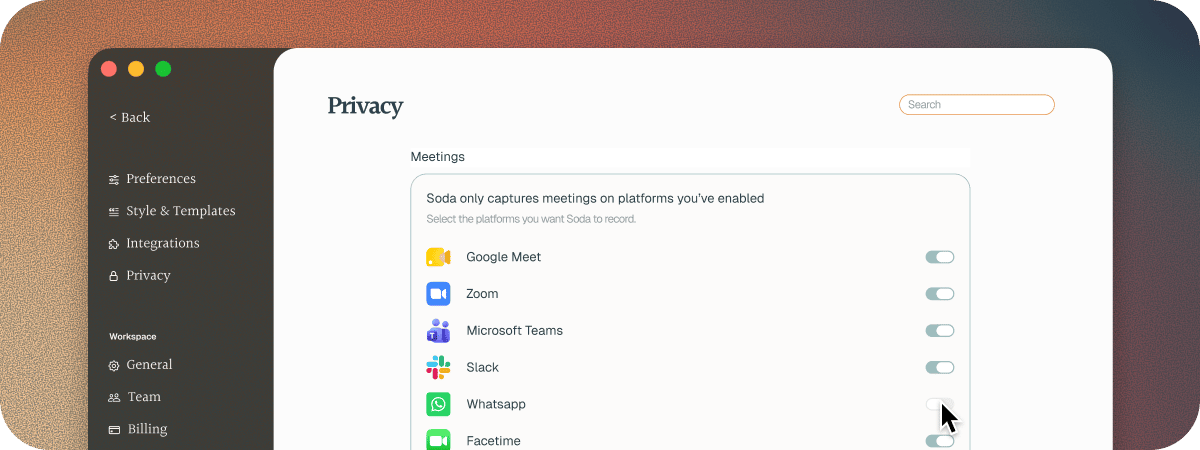 When an app is off, Soda never listens to calls in it. Turn it back on at any time.
Each switch covers the app and its browser version. For example, **Zoom** covers the Zoom app and Zoom in your browser.
A change applies from your next call. It doesn't stop a call that's already under way. To stop listening now, [pause Soda](/docs/calls/pause-soda).
## Next steps
Stop listening part way through a call.
The apps and browsers Soda hears calls in.
This documentation is built and hosted on [Mintlify](https://mintlify.com), a developer documentation platform.
When an app is off, Soda never listens to calls in it. Turn it back on at any time.
Each switch covers the app and its browser version. For example, **Zoom** covers the Zoom app and Zoom in your browser.
A change applies from your next call. It doesn't stop a call that's already under way. To stop listening now, [pause Soda](/docs/calls/pause-soda).
## Next steps
Stop listening part way through a call.
The apps and browsers Soda hears calls in.
This documentation is built and hosted on [Mintlify](https://mintlify.com), a developer documentation platform.