> ## Documentation Index
> Fetch the complete documentation index at: https://getsoda.app/docs/llms.txt
> Use this file to discover all available pages before exploring further.
# Installing Soda
> Install Soda and sign in. It takes a few minutes, and here's what to do if something gets in the way.
Getting Soda running takes a few minutes. You install the app, sign in with your work account, and Soda walks you through the rest.
Use your work email when you sign in. Soda is built for teams.
## Install Soda
Download the latest version of Soda.
[https://getsoda.app/](https://getsoda.app/)
Open the file you downloaded, then drag Soda onto your Applications folder.
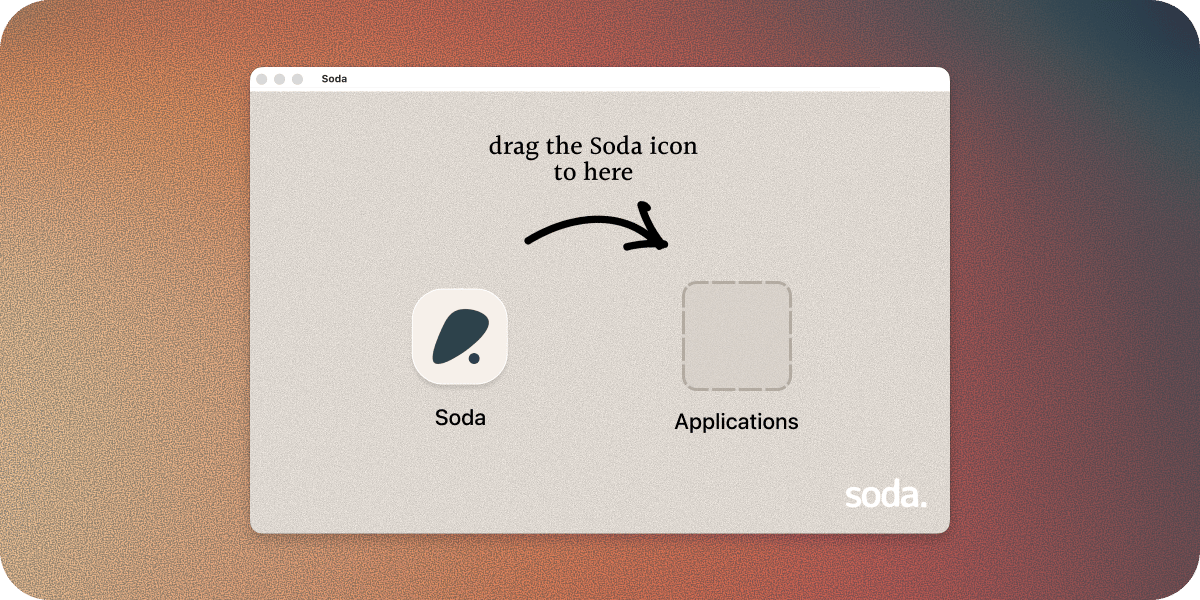 Open Soda from Applications. macOS asks if you're sure you want to open an app from the internet. That's normal for any app you download. Click **Open**.
You only need to do this once. Soda keeps itself up to date.
## Sign in with your work account
Sign in with whichever account your work email uses, Google or Microsoft.
Open Soda from Applications. macOS asks if you're sure you want to open an app from the internet. That's normal for any app you download. Click **Open**.
You only need to do this once. Soda keeps itself up to date.
## Sign in with your work account
Sign in with whichever account your work email uses, Google or Microsoft.
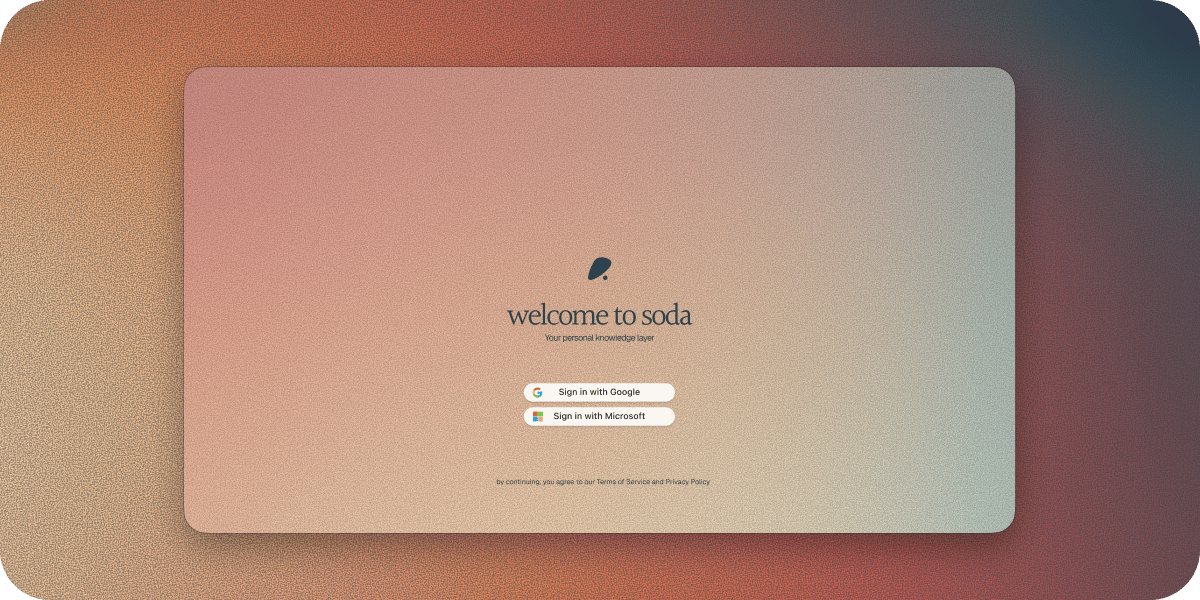 In the Soda window, click **Sign in with Google**. Your browser opens.
If your browser shows more than one Google account, choose your work one.
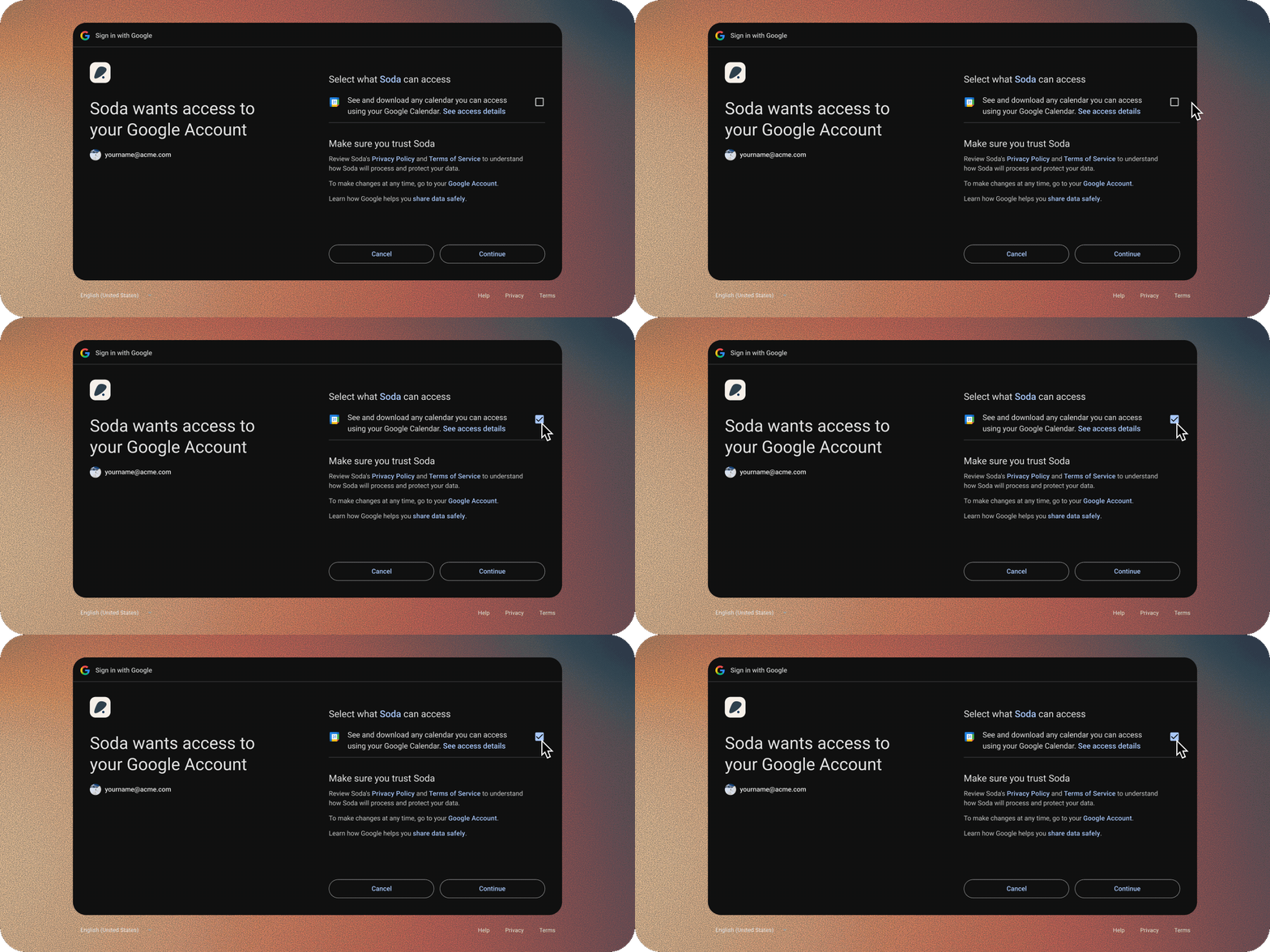
Google shows what permissions Soda is asking for. Allow them. [Here's what each one means.](#what-soda-asks-for-when-you-sign-in)
In the Soda window, click **Sign in with Google**. Your browser opens.
If your browser shows more than one Google account, choose your work one.
Google shows what permissions Soda is asking for. Allow them. [Here's what each one means.](#what-soda-asks-for-when-you-sign-in)
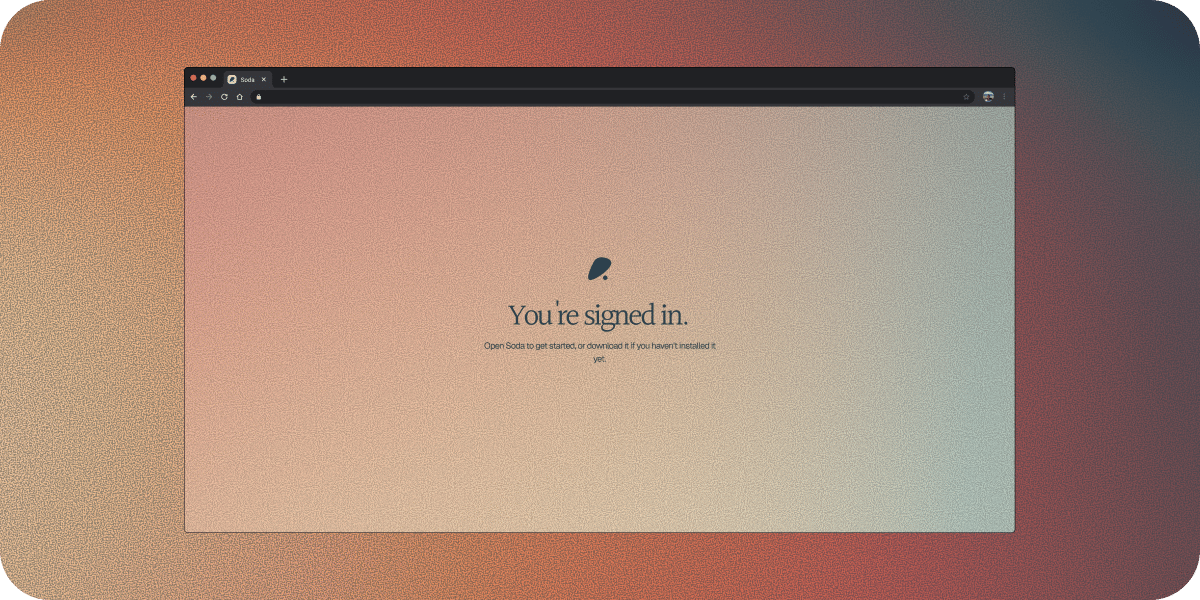
 The page says **You're in**. Close the tab. A **Signed in as** notification appears in the corner of your screen.
 Signing in with Microsoft works the same way.
In the Soda window, click **Sign in with Microsoft**. Your browser opens.
If your browser shows more than one Microsoft account, choose your work one.
Microsoft shows what permissions Soda is asking for. Allow them. [Here's what each one means.](#what-soda-asks-for-when-you-sign-in)
Signing in with Microsoft works the same way.
In the Soda window, click **Sign in with Microsoft**. Your browser opens.
If your browser shows more than one Microsoft account, choose your work one.
Microsoft shows what permissions Soda is asking for. Allow them. [Here's what each one means.](#what-soda-asks-for-when-you-sign-in)
 The page says **You're in**. Close the tab. A **Signed in as** notification appears in the corner of your screen.
 Signing in with Google works the same way.
Nothing happening after you click a sign-in button? Check your browser, it may have opened in the background.
## What Soda asks for when you sign in
Google or Microsoft asks you to give Soda three permissions:
* Your name, email address, and profile picture, so Soda knows who you are.
* Read-only access to your calendar, so Soda knows who you're meeting and when. It can't add, change, or delete anything on your calendar.
* Permission to stay connected, so Soda can keep your calendar up to date without you signing in every day.
## A few screens you might see
Depending on your account and your company, you might see one or both of these after signing in. If you don't, carry on.
If your Google or Microsoft account didn't share your full name, Soda shows **welcome to soda** with a **Your full name** box. Type your first and last name and click **Continue**.
If colleagues at your company already use Soda, you'll see **choose your workspace**. A workspace is your company's shared space in Soda, where you and your teammates can contribute to the same shared memory.
* **Join** gets you straight in.
* **Request Access** asks an admin, and you can keep using Soda while you wait.
* **Create a new workspace** keeps you in your own workspace, and you can join your team's later.
Signing in with Google works the same way.
Nothing happening after you click a sign-in button? Check your browser, it may have opened in the background.
## What Soda asks for when you sign in
Google or Microsoft asks you to give Soda three permissions:
* Your name, email address, and profile picture, so Soda knows who you are.
* Read-only access to your calendar, so Soda knows who you're meeting and when. It can't add, change, or delete anything on your calendar.
* Permission to stay connected, so Soda can keep your calendar up to date without you signing in every day.
## A few screens you might see
Depending on your account and your company, you might see one or both of these after signing in. If you don't, carry on.
If your Google or Microsoft account didn't share your full name, Soda shows **welcome to soda** with a **Your full name** box. Type your first and last name and click **Continue**.
If colleagues at your company already use Soda, you'll see **choose your workspace**. A workspace is your company's shared space in Soda, where you and your teammates can contribute to the same shared memory.
* **Join** gets you straight in.
* **Request Access** asks an admin, and you can keep using Soda while you wait.
* **Create a new workspace** keeps you in your own workspace, and you can join your team's later.
 [Learn more about workspaces](/docs/account/workspaces).
## If your company needs to approve Soda
Some companies ask IT to approve new apps before anyone can sign in with a work account. If yours does, Google or Microsoft shows a screen asking for your company's approval instead. It's a company setting, and nothing is wrong with your account.
When IT reviews Soda, they'll see it asks for your name, your email address, and read-only access to your calendar. One approval covers signing in for the whole company, so nobody there sees this screen again.
Microsoft shows a screen saying **Approval required** or **Need admin approval**.
[Learn more about workspaces](/docs/account/workspaces).
## If your company needs to approve Soda
Some companies ask IT to approve new apps before anyone can sign in with a work account. If yours does, Google or Microsoft shows a screen asking for your company's approval instead. It's a company setting, and nothing is wrong with your account.
When IT reviews Soda, they'll see it asks for your name, your email address, and read-only access to your calendar. One approval covers signing in for the whole company, so nobody there sees this screen again.
Microsoft shows a screen saying **Approval required** or **Need admin approval**.
 If there's a **Request approval** button, use it.
Microsoft opens a box for you to say why you need Soda.
Copy this into the box:
> Soda is the memory layer our customer-facing team uses. It needs sign-in and read-only calendar access.
Microsoft lets your admins know. When they've approved Soda, sign in again.
If there's no **Request approval** button, send your IT team the message below instead.
Google shows a screen saying access is blocked until your organisation's admin reviews Soda.
If there's a **Request approval** button, use it.
Microsoft opens a box for you to say why you need Soda.
Copy this into the box:
> Soda is the memory layer our customer-facing team uses. It needs sign-in and read-only calendar access.
Microsoft lets your admins know. When they've approved Soda, sign in again.
If there's no **Request approval** button, send your IT team the message below instead.
Google shows a screen saying access is blocked until your organisation's admin reviews Soda.
 It tells IT what Soda is and what it asks for.
Use whatever channel your company uses for IT help.
When IT has approved Soda, sign in again.
### Message for your IT team
Send this to whoever approves apps at your company.
> Subject: Approving Soda for our team
>
> Hi,
>
> I'd like to use Soda (getsoda.app) at work. It's the memory layer for customer-facing teams, and signing in with my work account needs admin approval.
>
> Soda asks for my name, my email address, and read-only access to my calendar. It can't change anything on the calendar, and it can't send email.
>
> One approval covers signing in for everyone here. There's a short guide for admins: [https://getsoda.app/docs/account/approve-soda-for-your-organisation](https://getsoda.app/docs/account/approve-soda-for-your-organisation)
>
> Thanks
The guide for whoever approves apps at your company.
## Next steps
After you sign in, Soda asks for a few macOS permissions, helps you connect your email, then offers a short tour.
What each permission is for, and how to turn it on.
Where everything lives once you're set up.
## Questions
Soda is built for teams, so the Google and Microsoft buttons are meant for work accounts. If you use one with a personal account, Soda shows **Soda is for teams**. Click **Back to sign in**, then sign up with your email address and a password instead. The steps are in the next question.
This works for any email address, including ones that aren't on Google or Microsoft.
It's under the sign-in buttons.
Soda shows the sign-up form.
Type your full name, your email address, and a password. The password needs at least 8 characters, including an uppercase letter, a lowercase letter, and a number.
Soda shows **confirm your email**.
Open the email called **Verify your email** and click **Confirm**. If it hasn't arrived, click **Resend email** in Soda.
Go back to Soda and sign in with your email address and password.
Logging out clears Soda's data from this Mac. It comes back when you sign in again.
Open the main Soda window and click your name at the bottom of the sidebar.
Soda signs you out and returns to the sign-in window.
Follow the sign-in steps above with your work account.
This is only for accounts that use an email address and a password.
It's on the sign-in screen. Your browser opens. Enter your email address and Soda sends you a link.
Open the link in the email and choose a new password. This signs you out on your other devices too.
Go back to Soda. It shows **Password updated. Sign in with your new password.** Sign in with it.
For more, see [Change or reset your password](/docs/account/password).
Still stuck? See [I can't sign in](/docs/troubleshooting/cant-sign-in), or email us at [support@getsoda.app](mailto:support@getsoda.app).
This documentation is built and hosted on [Mintlify](https://mintlify.com), a developer documentation platform.
It tells IT what Soda is and what it asks for.
Use whatever channel your company uses for IT help.
When IT has approved Soda, sign in again.
### Message for your IT team
Send this to whoever approves apps at your company.
> Subject: Approving Soda for our team
>
> Hi,
>
> I'd like to use Soda (getsoda.app) at work. It's the memory layer for customer-facing teams, and signing in with my work account needs admin approval.
>
> Soda asks for my name, my email address, and read-only access to my calendar. It can't change anything on the calendar, and it can't send email.
>
> One approval covers signing in for everyone here. There's a short guide for admins: [https://getsoda.app/docs/account/approve-soda-for-your-organisation](https://getsoda.app/docs/account/approve-soda-for-your-organisation)
>
> Thanks
The guide for whoever approves apps at your company.
## Next steps
After you sign in, Soda asks for a few macOS permissions, helps you connect your email, then offers a short tour.
What each permission is for, and how to turn it on.
Where everything lives once you're set up.
## Questions
Soda is built for teams, so the Google and Microsoft buttons are meant for work accounts. If you use one with a personal account, Soda shows **Soda is for teams**. Click **Back to sign in**, then sign up with your email address and a password instead. The steps are in the next question.
This works for any email address, including ones that aren't on Google or Microsoft.
It's under the sign-in buttons.
Soda shows the sign-up form.
Type your full name, your email address, and a password. The password needs at least 8 characters, including an uppercase letter, a lowercase letter, and a number.
Soda shows **confirm your email**.
Open the email called **Verify your email** and click **Confirm**. If it hasn't arrived, click **Resend email** in Soda.
Go back to Soda and sign in with your email address and password.
Logging out clears Soda's data from this Mac. It comes back when you sign in again.
Open the main Soda window and click your name at the bottom of the sidebar.
Soda signs you out and returns to the sign-in window.
Follow the sign-in steps above with your work account.
This is only for accounts that use an email address and a password.
It's on the sign-in screen. Your browser opens. Enter your email address and Soda sends you a link.
Open the link in the email and choose a new password. This signs you out on your other devices too.
Go back to Soda. It shows **Password updated. Sign in with your new password.** Sign in with it.
For more, see [Change or reset your password](/docs/account/password).
Still stuck? See [I can't sign in](/docs/troubleshooting/cant-sign-in), or email us at [support@getsoda.app](mailto:support@getsoda.app).
This documentation is built and hosted on [Mintlify](https://mintlify.com), a developer documentation platform.