> ## Documentation Index
> Fetch the complete documentation index at: https://getsoda.app/docs/llms.txt
> Use this file to discover all available pages before exploring further.
# Your first call
> What happens when you join a call with Soda running.
You're about to join an important call. You're thinking through the talking points, focusing on your agenda, your strategy, and your meeting goals. The last thing you should have to think about is pressing "record."
With Soda, you never have to. There are no buttons to remember and no bot waiting room awkwardness. Soda listens in the background, letting you give the conversation your full, undivided attention. By the time you hang up, it's already working to consolidate everything it's learnt.
## Before your call
Soda opens by itself when you power up and log into your Mac, then waits in the background. When your microphone comes on in a meeting app, like Zoom, Google Meet, Microsoft Teams, or a Slack huddle, Soda knows you're on a call. The call doesn't need to be on your calendar, so a last-minute call counts too. See [the meeting apps Soda works with](/docs/calls/supported-meeting-apps).
## During your call
When the call starts, you'll see Soda pop up quietly in the bottom-left corner of your screen. That's your sign Soda is listening. You'll find [other shortcuts](/docs/getting-started/find-your-way-around#the-bottom-left-corner) are there too, just click the icon.
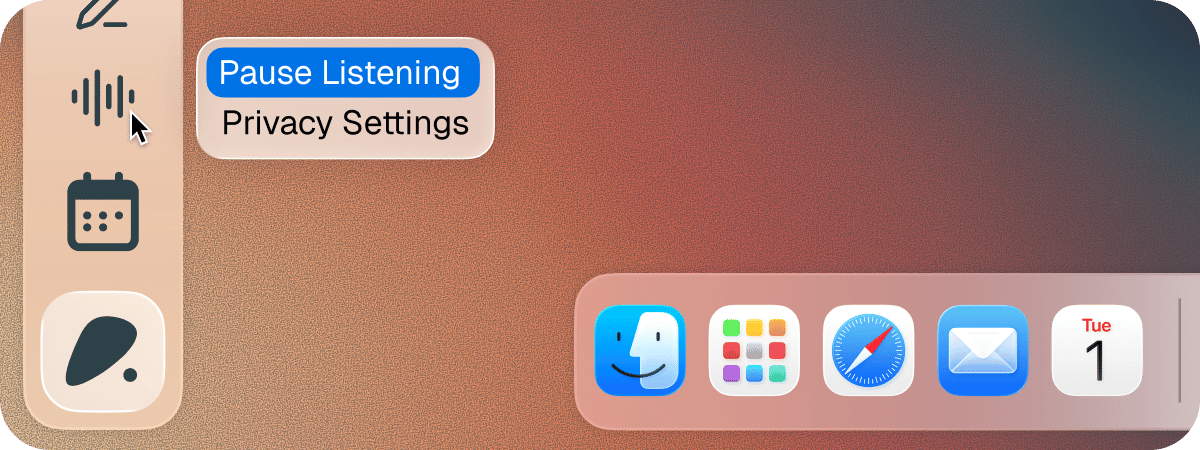 Nothing joins the meeting, and nobody on the call sees anything. Soda hears the call through your speakers, the same way you do, and no audio leaves your device.
Depending on where you are located and the laws there, you may need to tell the people on your call that Soda is listening. Soda doesn't do that for you. It matters, and it's your responsibility.
If the conversation turns to something sensitive, you can pause Soda at any time. Click the **Recording** tile to pause, and click it again to resume. See [Pause Soda during a call](/docs/calls/pause-soda).
You don't need to take notes, but if you want to, click **Create Note** and Soda uses what you type to shape its write-up. A notepad opens by itself only when you [join a meeting from Soda](/docs/calls/upcoming-meetings) with **Join with Notepad** on. See [AI enhanced meeting notes](/docs/using-soda/ai-enhanced-notes).
When you're done, leave the call as normal. Soda notices and wraps up.
## After your call
Your call appears in **Memories**. Open the memory to see a full write-up, including **Summary**, **Action Items**, **Decisions**, and **Key Moments**.
The real win is what happens to each person's profile. Soda creates a profile for anyone new you've spoken with or automatically updates an existing profile for anyone you've spoken with before. There's nothing to write up and nothing to file. See [how memory works](/docs/memory/how-memory-works).
Nothing joins the meeting, and nobody on the call sees anything. Soda hears the call through your speakers, the same way you do, and no audio leaves your device.
Depending on where you are located and the laws there, you may need to tell the people on your call that Soda is listening. Soda doesn't do that for you. It matters, and it's your responsibility.
If the conversation turns to something sensitive, you can pause Soda at any time. Click the **Recording** tile to pause, and click it again to resume. See [Pause Soda during a call](/docs/calls/pause-soda).
You don't need to take notes, but if you want to, click **Create Note** and Soda uses what you type to shape its write-up. A notepad opens by itself only when you [join a meeting from Soda](/docs/calls/upcoming-meetings) with **Join with Notepad** on. See [AI enhanced meeting notes](/docs/using-soda/ai-enhanced-notes).
When you're done, leave the call as normal. Soda notices and wraps up.
## After your call
Your call appears in **Memories**. Open the memory to see a full write-up, including **Summary**, **Action Items**, **Decisions**, and **Key Moments**.
The real win is what happens to each person's profile. Soda creates a profile for anyone new you've spoken with or automatically updates an existing profile for anyone you've spoken with before. There's nothing to write up and nothing to file. See [how memory works](/docs/memory/how-memory-works).
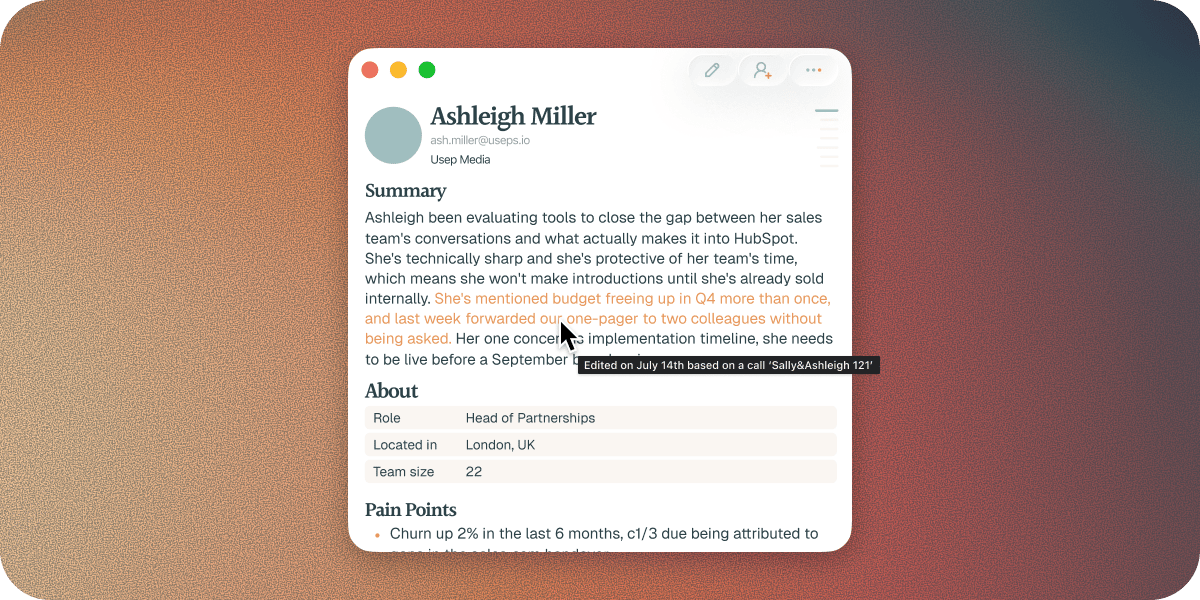 Oh, and given you aced the call you'll probably want to send out a summary. Soda can draft that follow-up email for you, it's even done in your own writing style. See [Draft your first follow-up email](/docs/getting-started/your-first-follow-up).
## Call settings
You can change how Soda handles your calls, like whether it keeps very short calls, or opens a notepad when you join a meeting from Soda. You'll find these in **Settings** > **Preferences**. See [Preferences](/docs/account/preferences).
## Call privacy
You may not want Soda listening to every call app you use. Maybe you take work calls on Google Meet, but personal calls on WhatsApp. You can tell Soda which apps it can listen to, and which it can't, in **Settings** > **Privacy**. See [Choose which apps Soda listens to](/docs/calls/choose-platforms).
## Questions
Soda opens by itself when you log in to your Mac, so this is rare. If you open Soda once a call is under way, it may not notice that call until your microphone turns off and on again, for example when you mute and unmute.
Check that you used [a meeting app Soda works with](/docs/calls/supported-meeting-apps), and that Soda's [permissions](/docs/getting-started/permissions) are turned on. For more help, see [A call wasn't captured](/docs/troubleshooting/call-not-captured).
Soda heard you but not the other people on the call. This is usually down to a Mac permission. See [Soda only heard me, not the other person](/docs/troubleshooting/only-heard-me).
## Next steps
Turn the call into a follow-up in your own writing style.
Ask Soda about your call, or anyone you've spoken with.
This documentation is built and hosted on [Mintlify](https://mintlify.com), a developer documentation platform.
Oh, and given you aced the call you'll probably want to send out a summary. Soda can draft that follow-up email for you, it's even done in your own writing style. See [Draft your first follow-up email](/docs/getting-started/your-first-follow-up).
## Call settings
You can change how Soda handles your calls, like whether it keeps very short calls, or opens a notepad when you join a meeting from Soda. You'll find these in **Settings** > **Preferences**. See [Preferences](/docs/account/preferences).
## Call privacy
You may not want Soda listening to every call app you use. Maybe you take work calls on Google Meet, but personal calls on WhatsApp. You can tell Soda which apps it can listen to, and which it can't, in **Settings** > **Privacy**. See [Choose which apps Soda listens to](/docs/calls/choose-platforms).
## Questions
Soda opens by itself when you log in to your Mac, so this is rare. If you open Soda once a call is under way, it may not notice that call until your microphone turns off and on again, for example when you mute and unmute.
Check that you used [a meeting app Soda works with](/docs/calls/supported-meeting-apps), and that Soda's [permissions](/docs/getting-started/permissions) are turned on. For more help, see [A call wasn't captured](/docs/troubleshooting/call-not-captured).
Soda heard you but not the other people on the call. This is usually down to a Mac permission. See [Soda only heard me, not the other person](/docs/troubleshooting/only-heard-me).
## Next steps
Turn the call into a follow-up in your own writing style.
Ask Soda about your call, or anyone you've spoken with.
This documentation is built and hosted on [Mintlify](https://mintlify.com), a developer documentation platform.