> ## Documentation Index
> Fetch the complete documentation index at: https://getsoda.app/docs/llms.txt
> Use this file to discover all available pages before exploring further.
# Connect a calendar
> So Soda knows who you're meeting.
Your calendar lets Soda show your upcoming meetings, join them in one click, and know who was on each call. Soda reads your events and never changes your calendar. See [Upcoming meetings and quick join](/docs/calls/upcoming-meetings).
## Connect a calendar
Your Google Calendar is connected when you sign in with Google. To add another Google account:
Go to **Settings** > **Integrations**.
Click **Connect** next to **Google Calendar**. Your browser opens.
Choose your account. Google then asks what Soda can access.
Tick the box next to **See and download any calendar you can access using your Google Calendar**, then click **Continue**. Without this, Soda can't see your upcoming meetings.
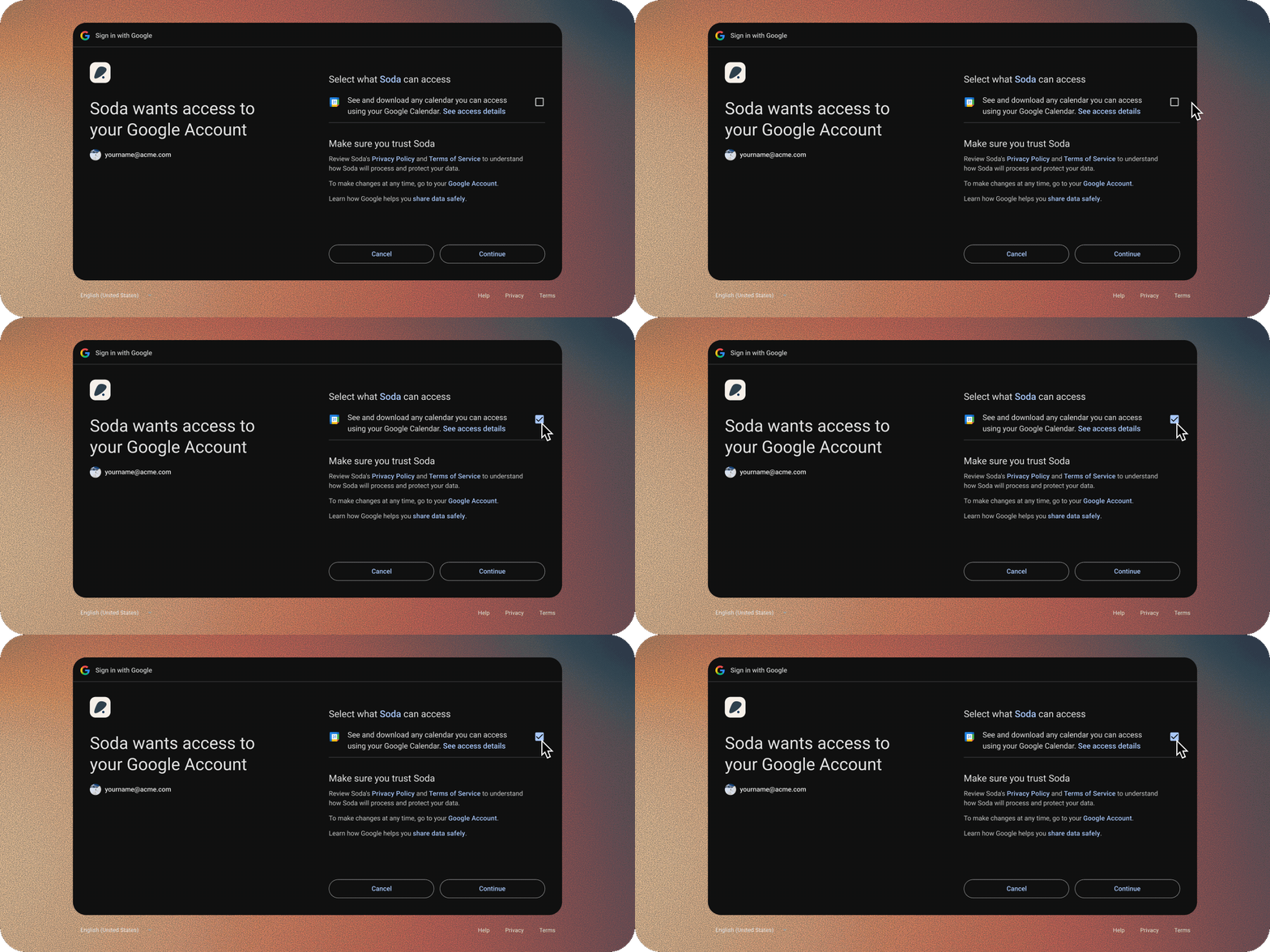 Your Outlook Calendar is connected when you sign in with Microsoft. To add another Microsoft account:
Go to **Settings** > **Integrations**.
Click **Connect** next to **Outlook Calendar**. Your browser opens.
Choose your account. Google then asks what Soda can access.
Tick the box next to **See and download any calendar you can access using your Google Calendar**, then click **Continue**. Without that tick, Soda can't see your upcoming meetings.
When the page says **Calendar connected**, close the tab.
If Soda says your organisation's admin may need to approve calendar access, your company has to approve Soda first. See [If your company needs to approve Soda](/docs/getting-started/install-and-sign-in#if-your-company-needs-to-approve-soda).
Go to **Settings** > **Integrations**.
Click **Connect** next to **Apple Calendar**.
Allow access when macOS asks.
If you said no before, **Connect** opens **System Settings** > **Privacy & Security** > **Calendars** instead. Turn on access for Soda there.
## More than one account
Connect as many calendar accounts as you like. Each one gets its own row under **Connected tools**. Soda reads every calendar in each account.
## Disconnect, and what happens to your data
For Google or Outlook:
In **Connected tools**, click **⋯** on the account's row.
Soda asks you to confirm.
Soda loses access to that account.
Your Outlook Calendar is connected when you sign in with Microsoft. To add another Microsoft account:
Go to **Settings** > **Integrations**.
Click **Connect** next to **Outlook Calendar**. Your browser opens.
Choose your account. Google then asks what Soda can access.
Tick the box next to **See and download any calendar you can access using your Google Calendar**, then click **Continue**. Without that tick, Soda can't see your upcoming meetings.
When the page says **Calendar connected**, close the tab.
If Soda says your organisation's admin may need to approve calendar access, your company has to approve Soda first. See [If your company needs to approve Soda](/docs/getting-started/install-and-sign-in#if-your-company-needs-to-approve-soda).
Go to **Settings** > **Integrations**.
Click **Connect** next to **Apple Calendar**.
Allow access when macOS asks.
If you said no before, **Connect** opens **System Settings** > **Privacy & Security** > **Calendars** instead. Turn on access for Soda there.
## More than one account
Connect as many calendar accounts as you like. Each one gets its own row under **Connected tools**. Soda reads every calendar in each account.
## Disconnect, and what happens to your data
For Google or Outlook:
In **Connected tools**, click **⋯** on the account's row.
Soda asks you to confirm.
Soda loses access to that account.
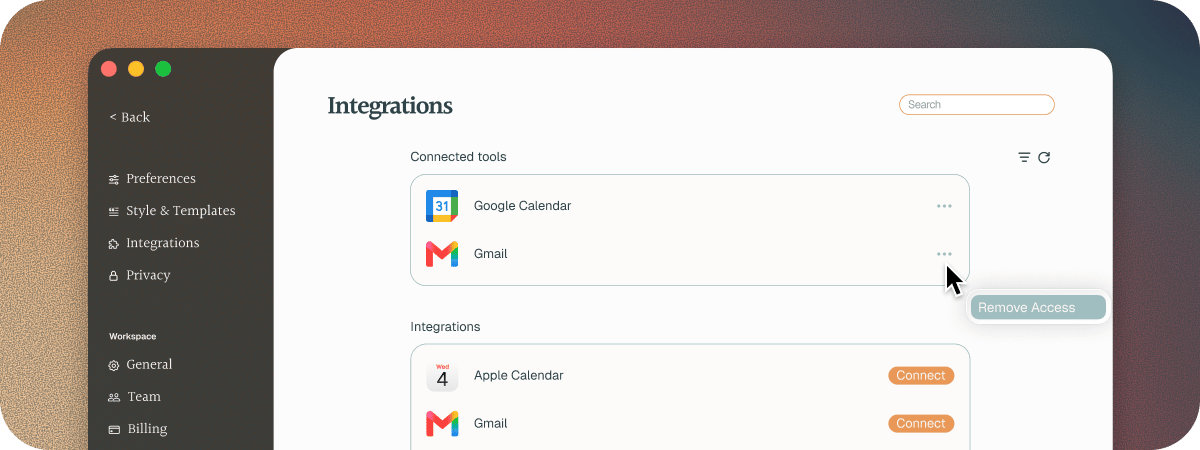 That account's meetings disappear from Soda, including from your upcoming meetings. Calls already in your memory stay.
You can't remove the account you signed in with. Its row is marked (primary).
For Apple Calendar, **Remove Access** opens System Settings. Turn off calendar access for Soda there.
## Troubleshooting
Go to **Settings** > **Integrations**. If the account shows **Reconnect needed**, click **⋯**, then choose **Reconnect**.
You connected Google Calendar without ticking the calendar box. Click **Reconnect** next to **Google Calendar** in **Settings** > **Integrations**, and tick the box when Google asks. See [how to tick the calendar box](#tick-the-calendar-permission).
You'll see a message like "Couldn't connect Google Calendar. Please try again or contact support." Click **Connect** again and finish the steps in your browser. It may have opened in the background. If it keeps failing, [contact support](/docs/troubleshooting/contact-support).
## Next steps
See what's next and join in one click.
Learn from email and draft follow-ups in your voice.
This documentation is built and hosted on [Mintlify](https://mintlify.com), a developer documentation platform.
That account's meetings disappear from Soda, including from your upcoming meetings. Calls already in your memory stay.
You can't remove the account you signed in with. Its row is marked (primary).
For Apple Calendar, **Remove Access** opens System Settings. Turn off calendar access for Soda there.
## Troubleshooting
Go to **Settings** > **Integrations**. If the account shows **Reconnect needed**, click **⋯**, then choose **Reconnect**.
You connected Google Calendar without ticking the calendar box. Click **Reconnect** next to **Google Calendar** in **Settings** > **Integrations**, and tick the box when Google asks. See [how to tick the calendar box](#tick-the-calendar-permission).
You'll see a message like "Couldn't connect Google Calendar. Please try again or contact support." Click **Connect** again and finish the steps in your browser. It may have opened in the background. If it keeps failing, [contact support](/docs/troubleshooting/contact-support).
## Next steps
See what's next and join in one click.
Learn from email and draft follow-ups in your voice.
This documentation is built and hosted on [Mintlify](https://mintlify.com), a developer documentation platform.