> ## Documentation Index
> Fetch the complete documentation index at: https://getsoda.app/docs/llms.txt
> Use this file to discover all available pages before exploring further.
# Integrations
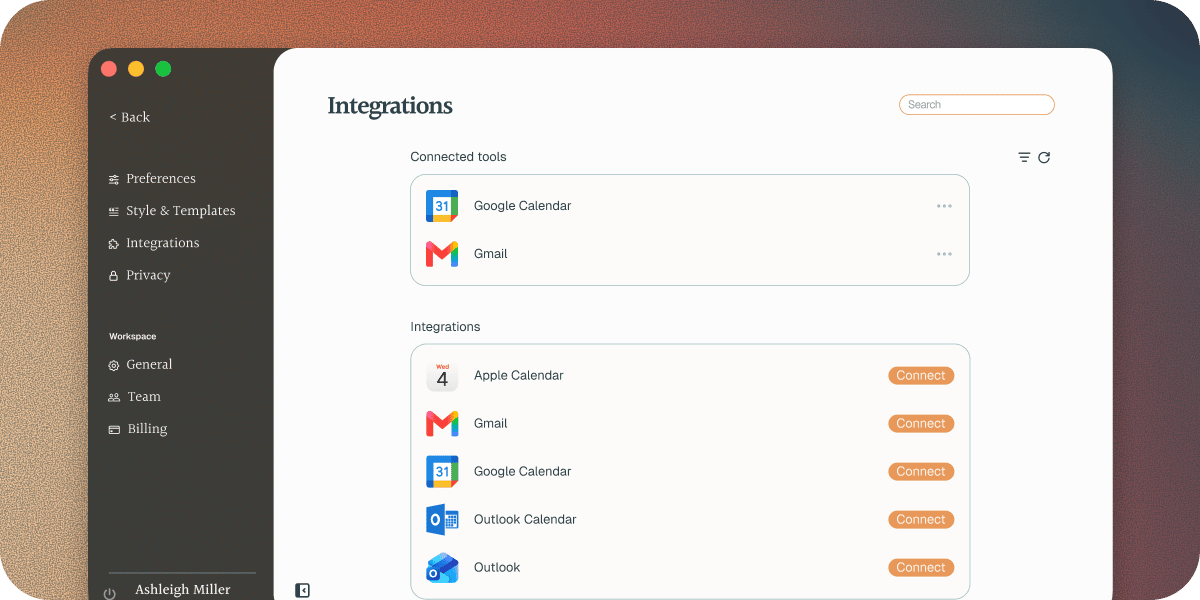
Soda connects to your calendar and your email. You manage both in **Settings** > **Integrations**. To get there, click your name at the bottom of the Soda sidebar, then choose **Settings**.
* **Connected tools** lists what you've connected, with each account's email address.
* **Integrations** lists what you can add. Click **Connect** next to one to add it.
 Google, Outlook, or Apple. See your upcoming meetings and join in one click.
Soda learns from your email and drafts follow-ups in your voice.
## If you see Reconnect needed
**Reconnect needed** on a row means Soda has lost access to that account. Click **⋯** on the row, then choose **Reconnect**, and approve Soda again in your browser.
If the message mentions your organisation's admin, your company needs to approve Soda first. Send them [Approve Soda for your organisation](/docs/account/approve-soda-for-your-organisation).
This documentation is built and hosted on [Mintlify](https://mintlify.com), a developer documentation platform.
Google, Outlook, or Apple. See your upcoming meetings and join in one click.
Soda learns from your email and drafts follow-ups in your voice.
## If you see Reconnect needed
**Reconnect needed** on a row means Soda has lost access to that account. Click **⋯** on the row, then choose **Reconnect**, and approve Soda again in your browser.
If the message mentions your organisation's admin, your company needs to approve Soda first. Send them [Approve Soda for your organisation](/docs/account/approve-soda-for-your-organisation).
This documentation is built and hosted on [Mintlify](https://mintlify.com), a developer documentation platform.