> ## Documentation Index
> Fetch the complete documentation index at: https://getsoda.app/docs/llms.txt
> Use this file to discover all available pages before exploring further.
# Your memories
> Every conversation build memory.
## What becomes a memory
Every call and email thread becomes a memory with a **Summary**, **Action Items**, **Decisions**, and **Key Moments**. The notes you take on a call can steer what it covers. See [AI Enhanced Meeting Notes](/docs/using-soda/ai-enhanced-notes).
The can also create your own notes by creating a blank notepad.
### Which emails Soda keeps
Your inbox is full of things that aren't conversations. Soda keeps the ones that matter and leaves the noise. A thread becomes a memory when it's a real back-and-forth, or when it's with someone you already know. Newsletters, automated notifications, cold emails nobody answered, and threads with only people you've excluded are left out.
You can tell Soda to ignore threads with colleagues or to ignore specific people. [Learn more about exclusion rules](/docs/memory/exclude-people-and-domains).
### Threads that are still going
Email threads are not processed immediately. When a thread is still busy, Soda waits for it to settle before it updates the write-up. You'll see "Active thread. Processing once conversation settles" at the top of the memory. That's on purpose as we found it helps improve the memory. You get one clear write-up of the whole exchange, instead of a new half-finished version every time someone replies.
## Find a memory
Click **Memories** in the sidebar. Everything is there, newest first and grouped by day. An email thread that gets a new reply today moves back to the top, the same as a call you had this morning.
To find a memory by what's in it, type in the search box at the top of the page. To ask a question instead, like what they said about the timeline, tap ⌘ twice on your keyboard (⌘⌘) and ask. See [Search with ⌘⌘](/docs/using-soda/search).
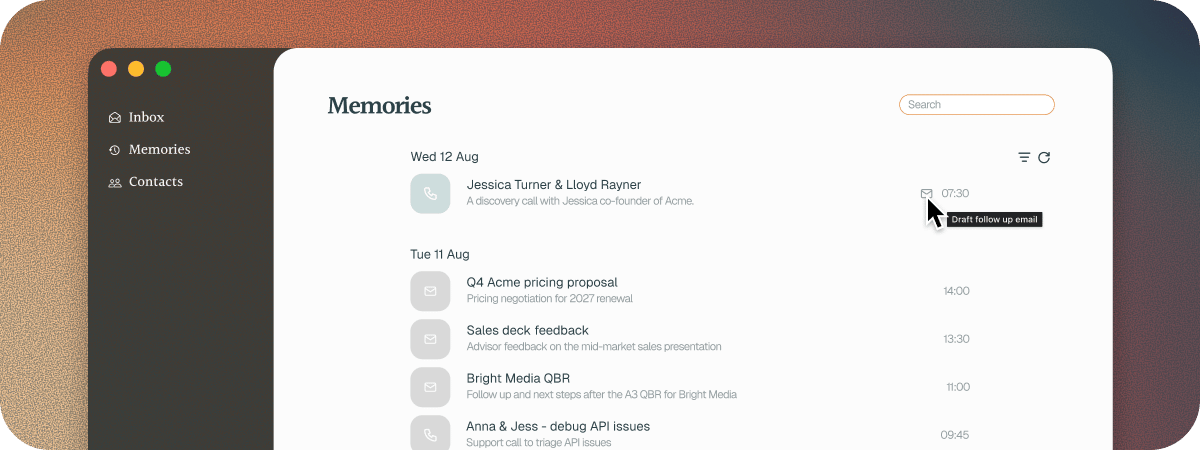 To narrow the list, click the filter icon and choose **Type**, **Date**, **Participant**, or **Name**. For example, tick **Email** under **Type** and pick your customer under **Participant**. Now you see every call and email thread with them.
Email is filtered out of the list to start with. Most people have far more email threads than calls, so Soda leaves them out to keep the list clear. Tick **Email** under **Type** whenever you want them in.
Click any memory to open it. Editing, formatting, pinning, and sharing all work the way they do in any [notepad](/docs/using-soda/notepad).
## Action items across your memories
An action item doesn't only live on the call or thread it came from. It also shows on the notepad of the person it belongs to, and on their company's. Say a customer agreed on a call to confirm the rollout dates with their team. That action item is on the call, on their notepad, and on their company's.
It's the same action item in all three places. Tick it off on their notepad, and it's ticked off on the call and on their company's too, so there's nothing to keep in step.
Soda also knows which way each one runs: what you owe people, and what they owe you. To see everything in one go, tap ⌘⌘ and ask:
* "What am I on the hook for with Jessica?"
* "What's still open from last month's calls with Halden?"
* "What did Jessica promise to send me?"
The answer comes back as a checklist, and you can tick items off right there.
## Delete a memory
Right-click it in **Memories** and choose **Delete**, or choose **Delete** from its notepad's menu. Soda asks "Delete this from your memory?" Click **Delete** to confirm.
The memory is removed. What it taught Soda stays: the people, companies, and details it added to profiles are kept.
Deleted memories can't be restored.
If you'd rather Soda stopped learning about someone altogether, exclude them. See [Exclude people and domains](/docs/memory/exclude-people-and-domains).
## Troubleshooting
Email is filtered out of **Memories** to start with. Click the filter icon and tick **Email** under **Type**. Search follows the same filter, so tick **Email** before you search for a thread. Each time you come back to **Memories**, the list starts without email again.
There are two usual reasons. Soda checks your mailbox regularly, so a new email shows up on the next check rather than the moment it lands. And while a thread is still going back and forth, Soda waits for it to settle, so the write-up covers the whole conversation. If a thread still doesn't appear, it may not look like a conversation yet because nobody has replied, or it may be with someone you've [excluded](/docs/memory/exclude-people-and-domains).
For a very short call, Soda asks **Keep this memory?** first, and only saves it if you say yes. For anything else, see [A call wasn't captured](/docs/troubleshooting/call-not-captured).
Longer calls and busy threads take longer to write up. If a memory says **Failed**, Soda couldn't finish it. [Contact support](/docs/troubleshooting/contact-support) and tell us which one it was.
## Next steps
See how every memory keeps the people and companies in it current.
Edit, format, pin, and share any memory.
Take notes on a call and let Soda build the write-up around them.
Ask about anything in your memories, from anywhere on your Mac.
This documentation is built and hosted on [Mintlify](https://mintlify.com), a developer documentation platform.
To narrow the list, click the filter icon and choose **Type**, **Date**, **Participant**, or **Name**. For example, tick **Email** under **Type** and pick your customer under **Participant**. Now you see every call and email thread with them.
Email is filtered out of the list to start with. Most people have far more email threads than calls, so Soda leaves them out to keep the list clear. Tick **Email** under **Type** whenever you want them in.
Click any memory to open it. Editing, formatting, pinning, and sharing all work the way they do in any [notepad](/docs/using-soda/notepad).
## Action items across your memories
An action item doesn't only live on the call or thread it came from. It also shows on the notepad of the person it belongs to, and on their company's. Say a customer agreed on a call to confirm the rollout dates with their team. That action item is on the call, on their notepad, and on their company's.
It's the same action item in all three places. Tick it off on their notepad, and it's ticked off on the call and on their company's too, so there's nothing to keep in step.
Soda also knows which way each one runs: what you owe people, and what they owe you. To see everything in one go, tap ⌘⌘ and ask:
* "What am I on the hook for with Jessica?"
* "What's still open from last month's calls with Halden?"
* "What did Jessica promise to send me?"
The answer comes back as a checklist, and you can tick items off right there.
## Delete a memory
Right-click it in **Memories** and choose **Delete**, or choose **Delete** from its notepad's menu. Soda asks "Delete this from your memory?" Click **Delete** to confirm.
The memory is removed. What it taught Soda stays: the people, companies, and details it added to profiles are kept.
Deleted memories can't be restored.
If you'd rather Soda stopped learning about someone altogether, exclude them. See [Exclude people and domains](/docs/memory/exclude-people-and-domains).
## Troubleshooting
Email is filtered out of **Memories** to start with. Click the filter icon and tick **Email** under **Type**. Search follows the same filter, so tick **Email** before you search for a thread. Each time you come back to **Memories**, the list starts without email again.
There are two usual reasons. Soda checks your mailbox regularly, so a new email shows up on the next check rather than the moment it lands. And while a thread is still going back and forth, Soda waits for it to settle, so the write-up covers the whole conversation. If a thread still doesn't appear, it may not look like a conversation yet because nobody has replied, or it may be with someone you've [excluded](/docs/memory/exclude-people-and-domains).
For a very short call, Soda asks **Keep this memory?** first, and only saves it if you say yes. For anything else, see [A call wasn't captured](/docs/troubleshooting/call-not-captured).
Longer calls and busy threads take longer to write up. If a memory says **Failed**, Soda couldn't finish it. [Contact support](/docs/troubleshooting/contact-support) and tell us which one it was.
## Next steps
See how every memory keeps the people and companies in it current.
Edit, format, pin, and share any memory.
Take notes on a call and let Soda build the write-up around them.
Ask about anything in your memories, from anywhere on your Mac.
This documentation is built and hosted on [Mintlify](https://mintlify.com), a developer documentation platform.