> ## Documentation Index
> Fetch the complete documentation index at: https://getsoda.app/docs/llms.txt
> Use this file to discover all available pages before exploring further.
# Sharing
Customers deal with more than one person on your team. The account executive wins the deal, customer success looks after them for a year, and sales step back in for the renewal. Every time the relationship changes hands, the customer shouldn't have to start again.
Your memory is private until you share it. Share a customer with a teammate, and they walk into their next conversation already knowing who's involved, what matters to them, and what was agreed. That's how the whole account team works from one picture. See [how shared memory works](/docs/memory/how-memory-works#shared-company-brain).
## Share a contact, company or call
You can share a person, a company, a call, or a note you wrote. It all starts from its notepad.
Open the person, company, or call you want to share. See [how to open a notepad](/docs/using-soda/notepad#open-a-notepad).
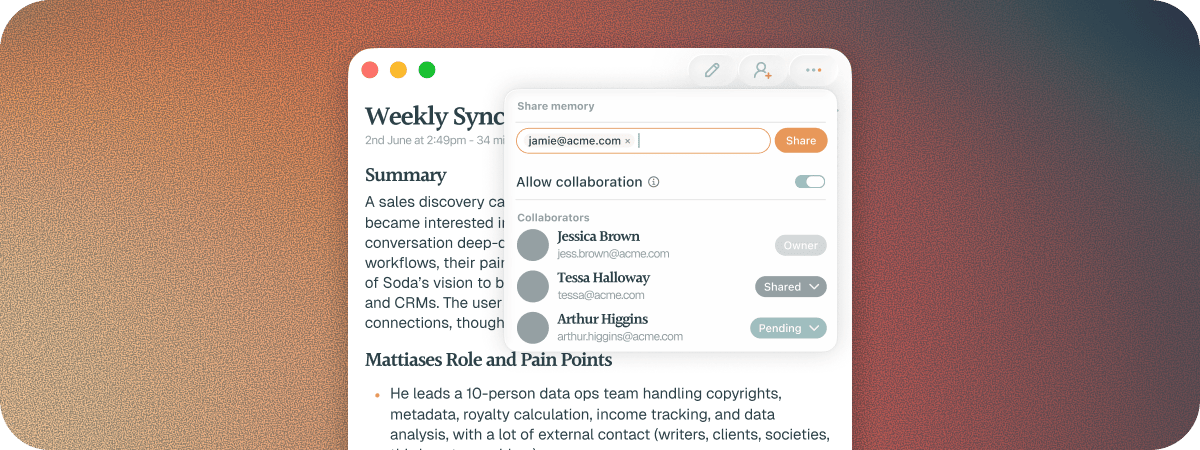
Click the share icon at the top right of the notepad, or choose **Share** from the notepad's menu.
Type your teammate's email address. Soda suggests people as you type.
For a person or a company, turn **Allow collaboration** on or off. See [share it live, or send a copy](#share-it-live-or-send-a-copy) below.
Your teammate appears in the list below, marked **Pending** until they accept.
 ## Share it live, or send a copy
When you share a person or a company, the **Allow collaboration** toggle in the Share popover decides whether you share it live or send a copy.
With it on, you and your teammate work from the same profile. What either of you learns shows up for both of you, so everyone sees one version of the truth.
Turn it off to send a copy. Your teammate gets their own copy of what you know today. It doesn't update after that, from your side or theirs.
## What your teammate gets
Share a person, and your teammate gets everything Soda knows about them. Share a company, and they get the company and all of its contacts.
Share a call or a note, and they get its write-up and action items. They can read it but can't change it. The people on the call stay private unless you share them too.
## Your teammate accepts it in their Inbox
Nothing appears for your teammate until they accept. The share arrives in their **Inbox**, and they click **Accept** or **Decline**.
If they already have a profile for the same person or company, Soda shows them what's new before anything changes. It offers to merge it into the existing profile, so they don't end up with two copies of the same contact. They choose which new details to add, and nothing they already know is overwritten without their say.
## Share with someone new to Soda
Your colleague doesn't need to be on Soda yet. They get an email saying you've shared something with them, with an **Open** button to get started. They show as **Pending** in the Share popover until they join Soda and accept.
## See who has access
Once something is shared, the share icon shows how many people have access. Hover over it to see who. Open the Share popover to see everyone, marked **Owner**, **Shared**, or **Pending**.
## Stop sharing
You can take back a share at any time, whether or not your teammate has accepted it.
Click the share icon on the notepad.
Next to their name, click **Shared**, or **Pending** if they haven't accepted yet. Then click **Remove**.
Removing someone takes effect straight away. If you remove someone from a company, they also lose the contacts and calls they had through it.
## If your workspace restricts sharing
By default, you can share with anyone by their email address. An admin can limit sharing people and companies to teammates in your workspace. When they do, the Share popover shows **Sharing restricted to workspace**, and Soda only suggests **Workspace members**. People and companies already shared with someone outside the workspace are unshared, and invites they haven't accepted are cancelled.
Calls and notes aren't affected. See [what your team can see](/docs/account/what-your-team-can-see).
## Troubleshooting
They may not have accepted it yet. Nothing shows until they click **Accept** in their **Inbox**. A share that isn't accepted within 30 days expires, so share it again if it's been a while.
If they accepted but aren't seeing anything new, you probably sent a copy, which doesn't update. Share it again with **Allow collaboration** turned on.
If your workspace restricts sharing, a person or company shared with someone outside it is unshared.
If the **Share** button is greyed out, hover over it. You'll see this message:
"Your workspace has been restricted so Contact and Companies cannot be shared outside the team. This setting can be changed by your workspace admin."
Your admin has limited sharing people and companies to your workspace. Speak to your admin to turn off the restriction.
Open the Share popover. Next to their name, click **Pending** or **Shared**, then **Remove**.
Soda hasn't finished with that call, person, or company yet. Try again in a moment. For someone new, it can take until after your next conversation with them.
## Next steps
Accept what teammates share with you, and review it first.
How one shared memory keeps the whole account team in step.
This documentation is built and hosted on [Mintlify](https://mintlify.com), a developer documentation platform.
## Share it live, or send a copy
When you share a person or a company, the **Allow collaboration** toggle in the Share popover decides whether you share it live or send a copy.
With it on, you and your teammate work from the same profile. What either of you learns shows up for both of you, so everyone sees one version of the truth.
Turn it off to send a copy. Your teammate gets their own copy of what you know today. It doesn't update after that, from your side or theirs.
## What your teammate gets
Share a person, and your teammate gets everything Soda knows about them. Share a company, and they get the company and all of its contacts.
Share a call or a note, and they get its write-up and action items. They can read it but can't change it. The people on the call stay private unless you share them too.
## Your teammate accepts it in their Inbox
Nothing appears for your teammate until they accept. The share arrives in their **Inbox**, and they click **Accept** or **Decline**.
If they already have a profile for the same person or company, Soda shows them what's new before anything changes. It offers to merge it into the existing profile, so they don't end up with two copies of the same contact. They choose which new details to add, and nothing they already know is overwritten without their say.
## Share with someone new to Soda
Your colleague doesn't need to be on Soda yet. They get an email saying you've shared something with them, with an **Open** button to get started. They show as **Pending** in the Share popover until they join Soda and accept.
## See who has access
Once something is shared, the share icon shows how many people have access. Hover over it to see who. Open the Share popover to see everyone, marked **Owner**, **Shared**, or **Pending**.
## Stop sharing
You can take back a share at any time, whether or not your teammate has accepted it.
Click the share icon on the notepad.
Next to their name, click **Shared**, or **Pending** if they haven't accepted yet. Then click **Remove**.
Removing someone takes effect straight away. If you remove someone from a company, they also lose the contacts and calls they had through it.
## If your workspace restricts sharing
By default, you can share with anyone by their email address. An admin can limit sharing people and companies to teammates in your workspace. When they do, the Share popover shows **Sharing restricted to workspace**, and Soda only suggests **Workspace members**. People and companies already shared with someone outside the workspace are unshared, and invites they haven't accepted are cancelled.
Calls and notes aren't affected. See [what your team can see](/docs/account/what-your-team-can-see).
## Troubleshooting
They may not have accepted it yet. Nothing shows until they click **Accept** in their **Inbox**. A share that isn't accepted within 30 days expires, so share it again if it's been a while.
If they accepted but aren't seeing anything new, you probably sent a copy, which doesn't update. Share it again with **Allow collaboration** turned on.
If your workspace restricts sharing, a person or company shared with someone outside it is unshared.
If the **Share** button is greyed out, hover over it. You'll see this message:
"Your workspace has been restricted so Contact and Companies cannot be shared outside the team. This setting can be changed by your workspace admin."
Your admin has limited sharing people and companies to your workspace. Speak to your admin to turn off the restriction.
Open the Share popover. Next to their name, click **Pending** or **Shared**, then **Remove**.
Soda hasn't finished with that call, person, or company yet. Try again in a moment. For someone new, it can take until after your next conversation with them.
## Next steps
Accept what teammates share with you, and review it first.
How one shared memory keeps the whole account team in step.
This documentation is built and hosted on [Mintlify](https://mintlify.com), a developer documentation platform.