

Admins and members
- Admin manages the workspace settings, join requests, roles, and who’s in the workspace.
- Member sees the Team list, and uses Soda as normal.
How people join
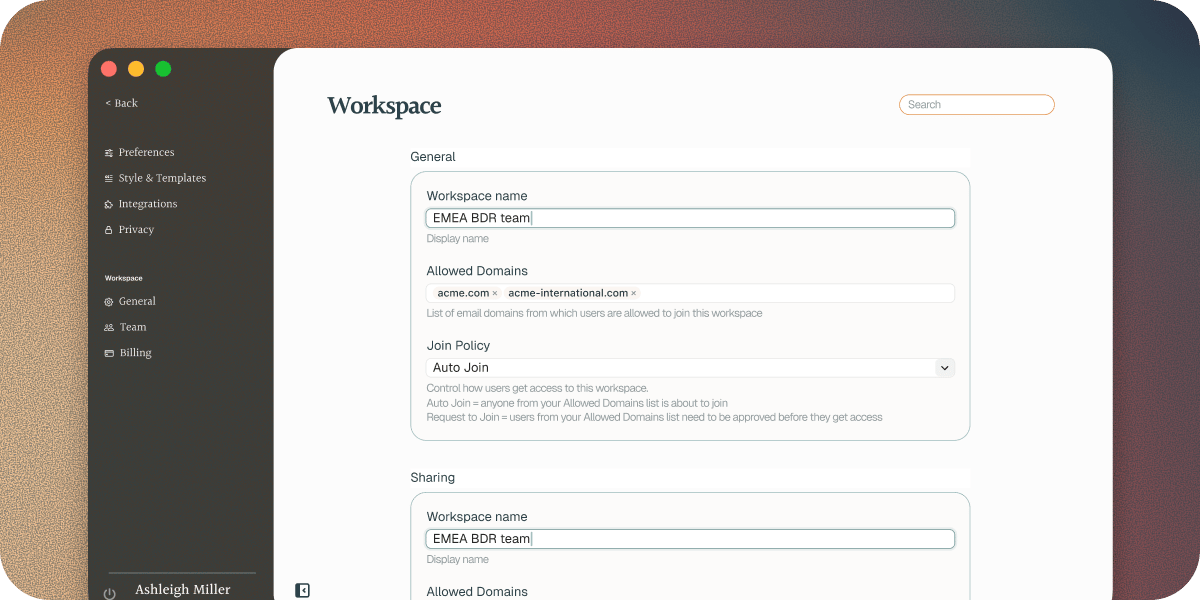
Anyone in the workspace can invite a teammate. People with an email address at one of your Allowed Domains can also join when they sign up. Join Policy decides how:- Auto Join lets them in straight away.
- Request to Join waits for an admin to approve them. This is the default.
Invite a teammate
Go to Settings > Workspace > Team and click Invite Teammate. See Set up your team for the steps.- They join as a member. An admin can make them an admin later.
- An invite lasts 7 days.
- You can invite people whose email isn’t at one of your Allowed Domains.
Approve a request to join
When someone asks to join, a Requested Access row appears in the Team page. An admin clicks it, then clicks Approve or Decline. Admins also get an email with the same buttons.Change a role
In Team, choose Admin or Member next to the person’s name. If you change your own role to Member, Soda asks you to confirm, because you’ll lose admin access. A workspace always keeps at least one admin.Remove someone
In Team, choose Remove Access from the menu on their row. When you remove someone:- They get their own workspace, and keep their memory.
- Anything teammates shared with them is taken back.
- Anything they shared with the team stays.
Next steps
Set up your team
Bring your team into Soda.
What your team can see
Your memory is yours until you share it.