

Three kinds of notepad
- Memories. The write-up of every conversation, with a Summary, Action Items, Decisions, and Key Moments. See AI enhanced meeting notes.
- People. A living profile of everyone you talk to: who they are, what they care about, what they’ve decided, and what’s worrying them.
- Companies. The same for every company, with everyone Soda knows there.
Open a notepad
- For a blank notepad: click Create Note in the bottom-left corner of your screen, click New Notepad in the Soda window’s sidebar, or tap ⌘ twice (⌘⌘) and type /new.
- A call or email: click it in Memories.
- A person or company: open them from Contacts, or tap ⌘ twice (⌘⌘) and type /open followed by the name of the person or company.
Join a call with a notepad
The easiest way to take notes on a call is to join it from Soda. In Upcoming meetings, click Join with Notepad. Soda opens the meeting and a notepad side by side, already linked to the call. Opened a note yourself a few minutes before a call? When the call starts, Soda asks whether to attach it, for example “Attach to Acme quarterly review?”. Click Attach.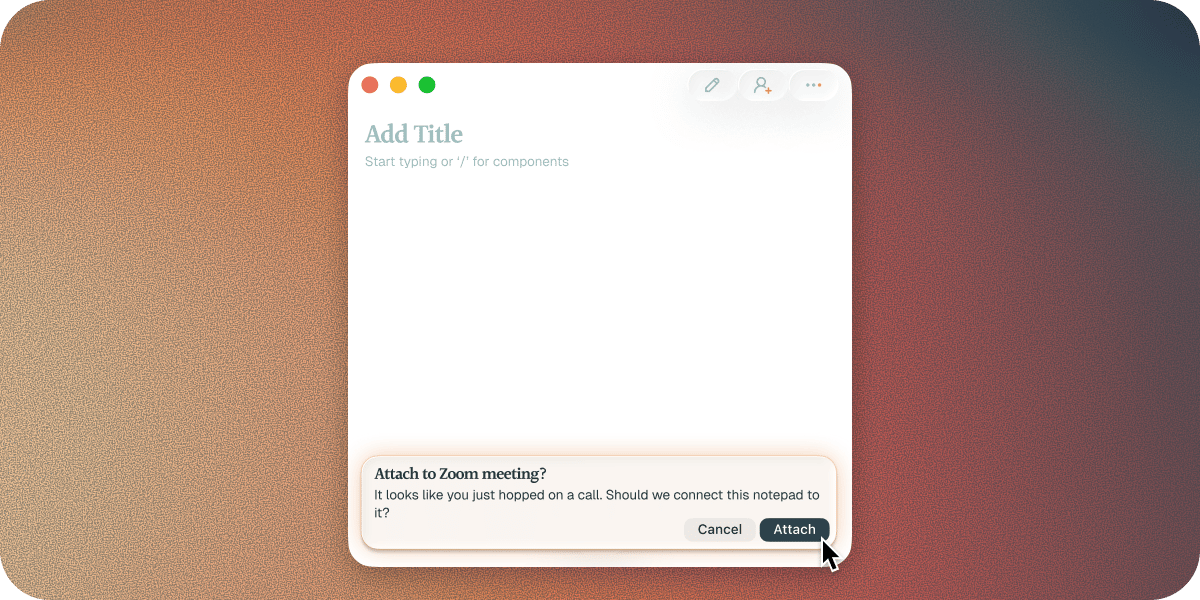
Editing a notepad
Click the ‘pencil’ icon in the top right of a notepad to enable editing, then click anywhere in a notepad and start typing.Write and format
Type / to add a heading, a bulleted or numbered list, a quote, or a divider. Familiar shortcuts work too, like two asterisks either side of a word to make it bold. Type @ to mention someone.Components
Components are ready-made sections, like Action Items or Engagement, and Soda fills most of them in for you as it learns. Each kind of notepad has its own set. To add one, type / and pick it from the Components group. Each component can be added once, so any that are already in the note show greyed out.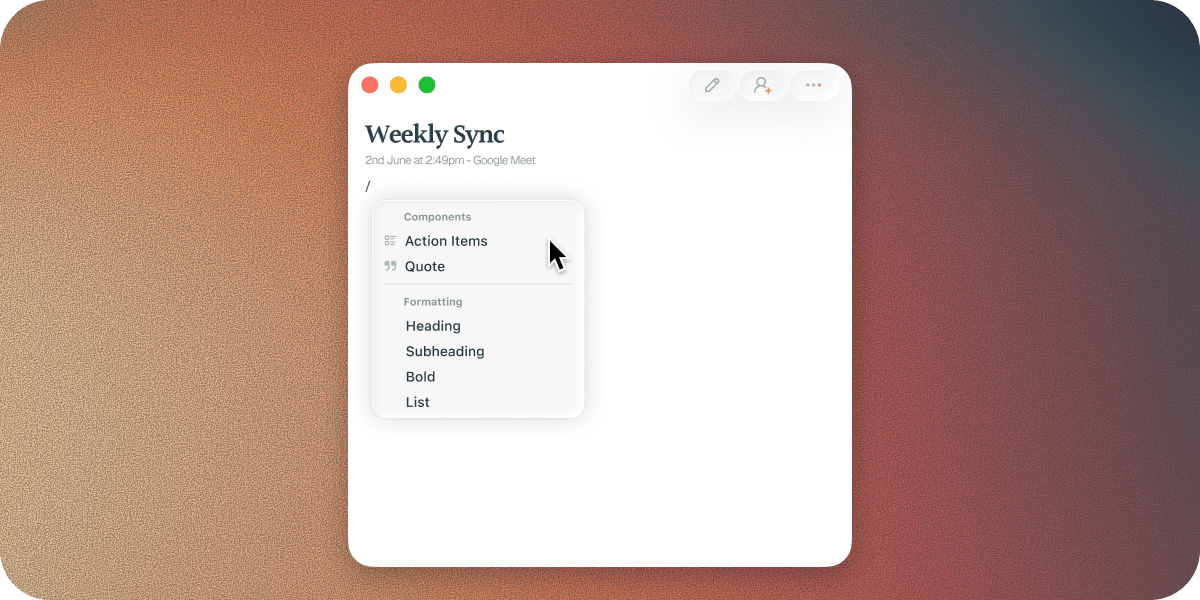

- Call or note
- Contact
- Company
Action Items are every to-do from the call, each with a tickbox. Tick one off when it’s done. Type @ to assign it to someone, and click the date to set when it’s due. Soda fills the list from the call, and you can add your own. When a list gets long, the rest folds away until you want it.








Pin a notepad to the screen
Choose Pin To Top from the notepad’s menu to keep it above your other windows, so your notes sit next to the meeting. Choose Unpin from Top to let it go back behind your other windows.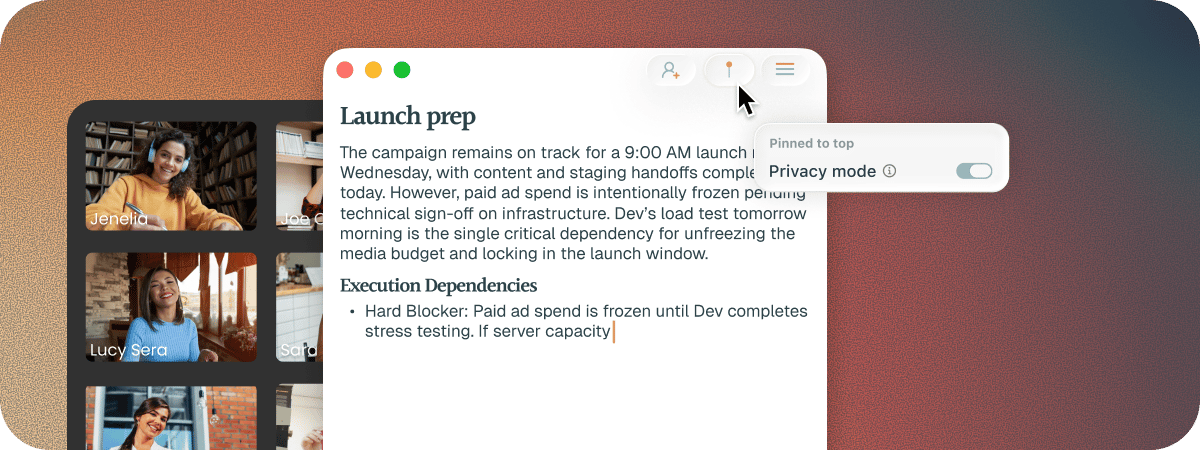
Hide your notes from screenshare
Sharing your screen with a customer and don’t want them to read your notes? Once a notepad is pinned, right-click the pin and turn on privacy mode. You still see the notepad, but it’s hidden from screen shares and recordings, so nobody else on the call sees what you’re writing. Perfect for interviews, customer demos, or when you’re speaking with your ex.See what changed
People and companies change, and their notepads keep up. Open Bruce’s notepad before your next call and the new details stand out. Maybe Acme has a new CFO, or budget sign-off has moved to next quarter. Anything Soda has changed in the last two weeks is highlighted. Hover over it to see when it changed and where it came from, like “Edited on September 3rd based on ‘Acme renewal’”. See how profiles stay up to date.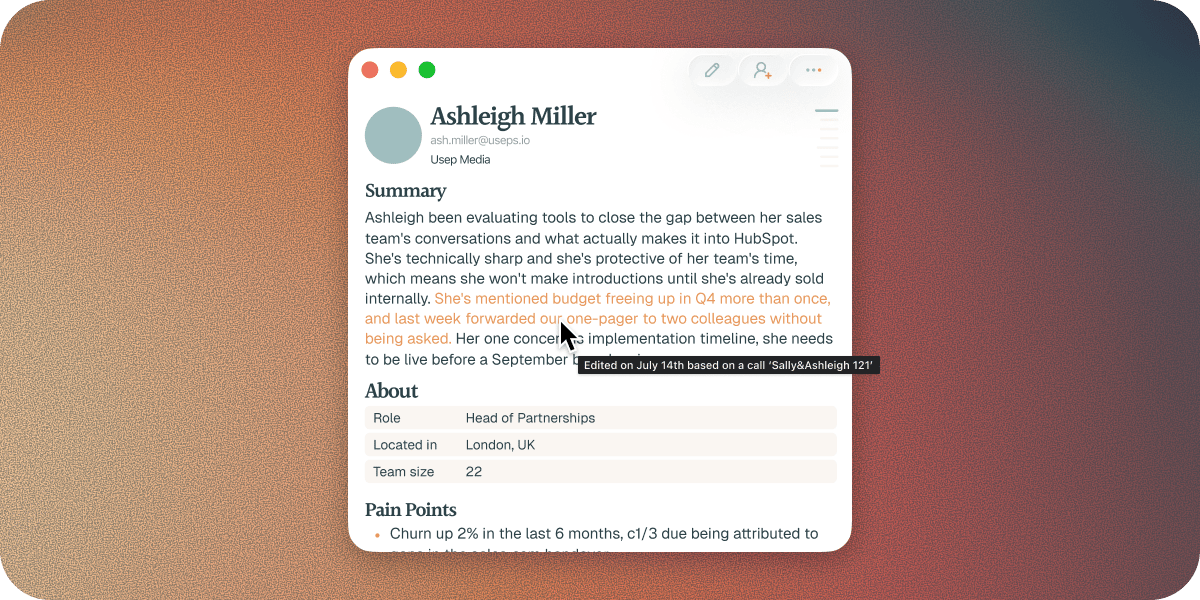
Share, export, or send a follow-up
To pass a notepad to a teammate, choose Share from its menu. See how to share with a teammate. On a call, choose Send follow-up email and Soda drafts the follow-up in your own voice. See follow-up emails. To keep a copy outside Soda, choose Export to PDF.Delete a notepad
Choose Delete from the notepad’s menu, then click Delete again to confirm. The call, email, or note is removed from your memory. The contacts and details it added to profiles are kept.Once a notepad has been deleted it cannot be restored
Troubleshooting
A section says "No products yet"
A section says "No products yet"
Soda hasn’t heard or read anything for that section yet. You’ll see the same for “No connections yet”, “No communication yet”, and “No contacts yet”. Each one fills in as you have more calls and emails with that person or company. You can also type in it yourself.
A detail on a profile is wrong
A detail on a profile is wrong
Change it. Your edit becomes part of the profile, and Soda won’t change it back. See when Soda gets it wrong.
The notepad won't open
The notepad won't open
Quit Soda and open it again. You’ll find Quit when you click your name at the bottom of the sidebar. If it still won’t open, contact support.
Next steps
AI enhanced meeting notes
Take notes on a call, and let Soda build the write-up around them.
Search with ⌘⌘
Ask Soda about any call, note, or customer from anywhere on your Mac.