

Install Soda
Download Soda
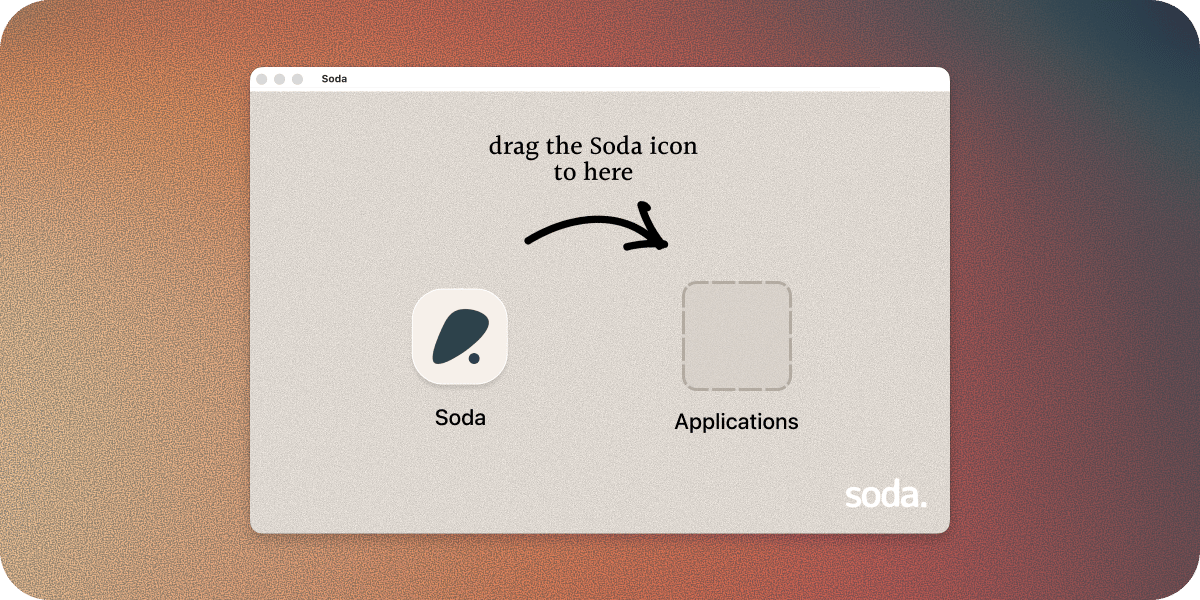
Drag Soda into Applications
Open Soda
Sign in with your work account
Sign in with whichever account your work email uses, Google or Microsoft.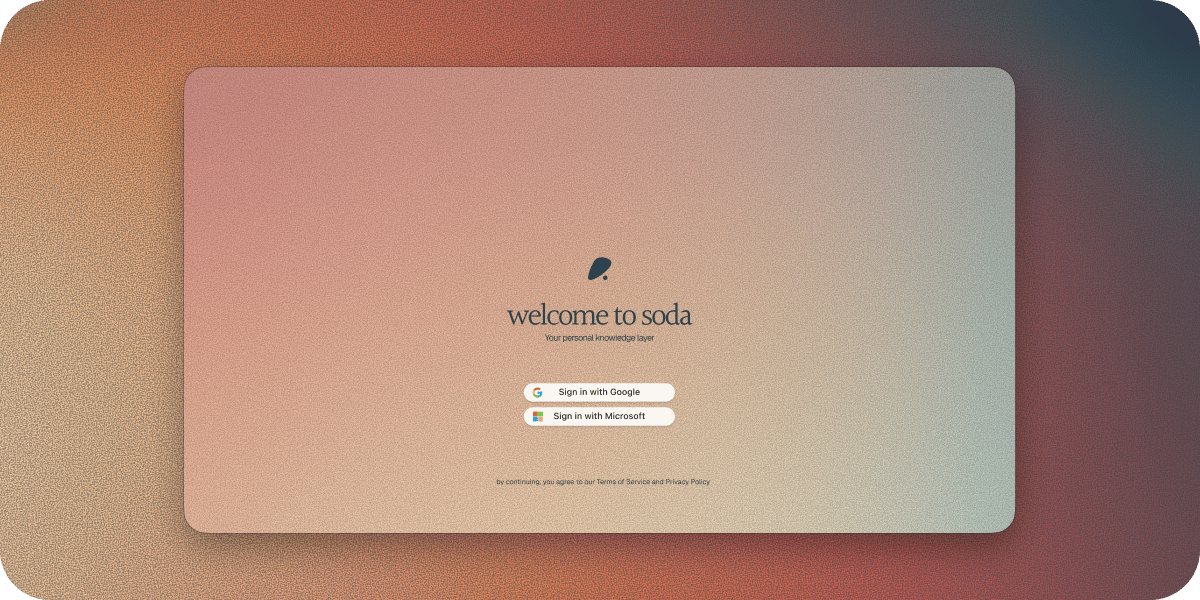
- Google
- Microsoft
Click Sign in with Google
Choose your work account
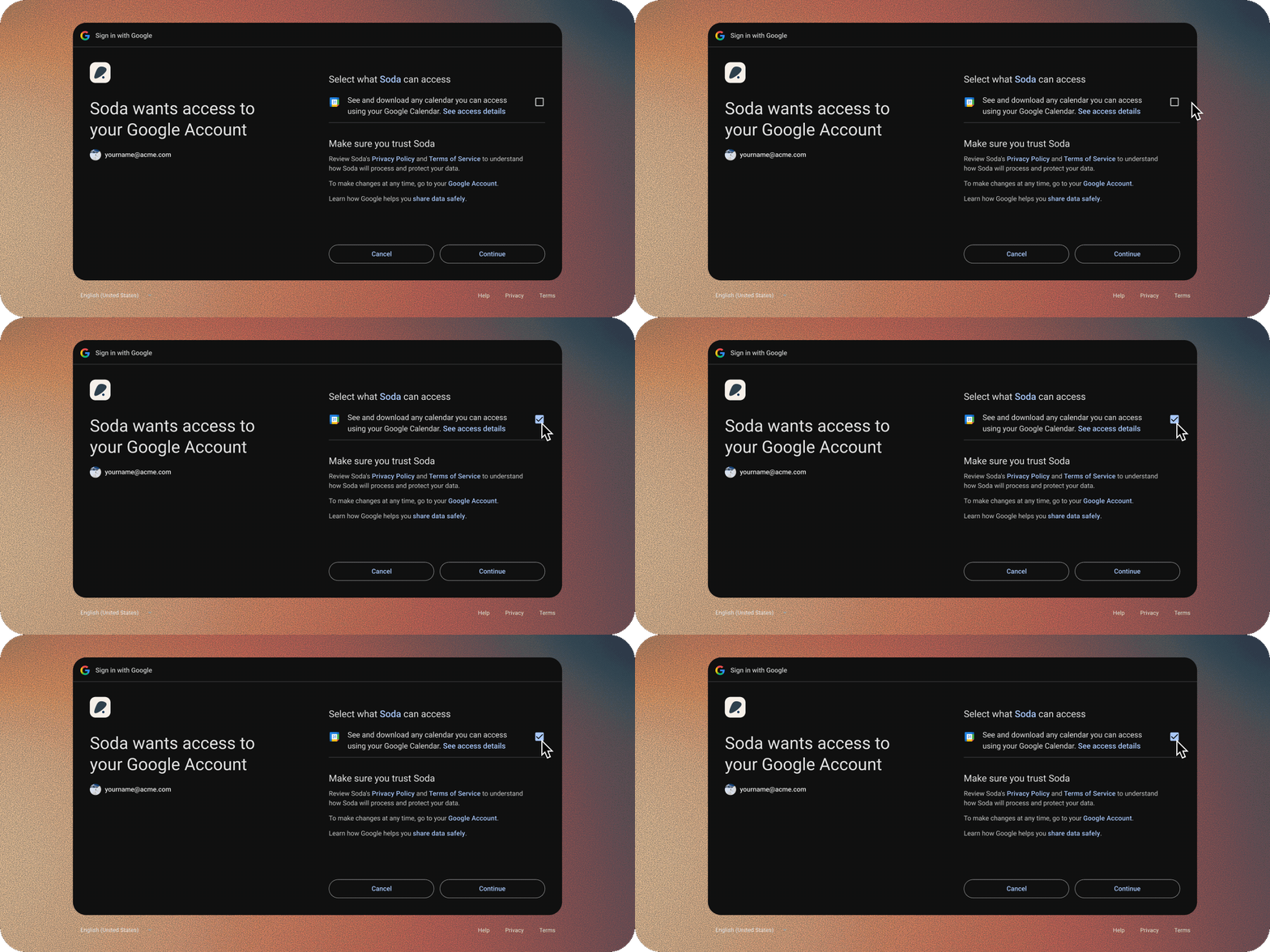
Allow the permissions
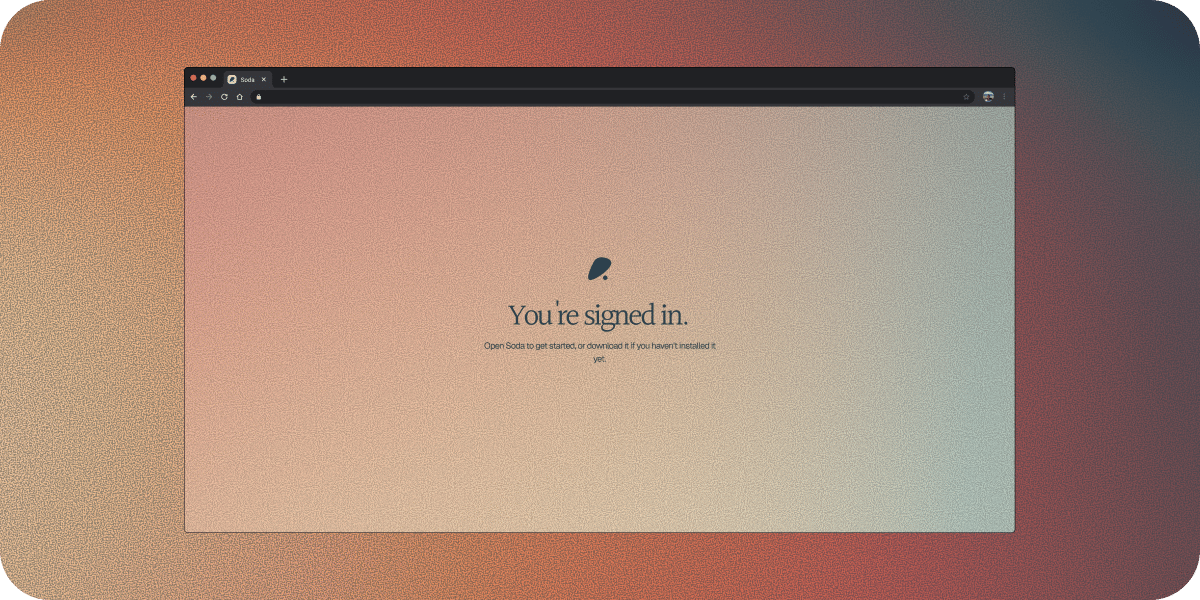
Close the browser tab


What Soda asks for when you sign in
Google or Microsoft asks you to give Soda three permissions:- Your name, email address, and profile picture, so Soda knows who you are.
- Read-only access to your calendar, so Soda knows who you’re meeting and when. It can’t add, change, or delete anything on your calendar.
- Permission to stay connected, so Soda can keep your calendar up to date without you signing in every day.
A few screens you might see
Depending on your account and your company, you might see one or both of these after signing in. If you don’t, carry on. If your Google or Microsoft account didn’t share your full name, Soda shows welcome to soda with a Your full name box. Type your first and last name and click Continue. If colleagues at your company already use Soda, you’ll see choose your workspace. A workspace is your company’s shared space in Soda, where you and your teammates can contribute to the same shared memory.- Join gets you straight in.
- Request Access asks an admin, and you can keep using Soda while you wait.
- Create a new workspace keeps you in your own workspace, and you can join your team’s later.

Choosing a workspace when colleagues already use Soda.
If your company needs to approve Soda
Some companies ask IT to approve new apps before anyone can sign in with a work account. If yours does, Google or Microsoft shows a screen asking for your company’s approval instead. It’s a company setting, and nothing is wrong with your account. When IT reviews Soda, they’ll see it asks for your name, your email address, and read-only access to your calendar. One approval covers signing in for the whole company, so nobody there sees this screen again.- Microsoft
- Google

Microsoft's approval screen, with the Request approval button.
Click Request approval
Paste in a reason
Soda is the memory layer our customer-facing team uses. It needs sign-in and read-only calendar access.
Sign in again once it's approved

Message for your IT team
Send this to whoever approves apps at your company.Subject: Approving Soda for our team Hi, I’d like to use Soda (getsoda.app) at work. It’s the memory layer for customer-facing teams, and signing in with my work account needs admin approval. Soda asks for my name, my email address, and read-only access to my calendar. It can’t change anything on the calendar, and it can’t send email. One approval covers signing in for everyone here. There’s a short guide for admins: https://getsoda.app/docs/account/approve-soda-for-your-organisation Thanks
Approve Soda for your organisation
Next steps
After you sign in, Soda asks for a few macOS permissions, helps you connect your email, then offers a short tour.Grant Soda the permissions it needs
Find your way around Soda
Questions
What if I don't have a work email address?
What if I don't have a work email address?
How do I sign up with email and a password?
How do I sign up with email and a password?
Click Trouble signing in?
Click Don't have an account? Sign up
Enter your details
Click Create Account
Confirm your email address
Sign in
I signed in with the wrong account. How do I switch?
I signed in with the wrong account. How do I switch?
Click your name
Choose Log out
Sign in with the right account
What if I forget my password?
What if I forget my password?
Click Forgotten password
Set a new password
Sign in with your new password