

Ask Soda a question (⌘⌘)
We wanted as little friction as possible between needing an answer and getting it. Staying in flow matters, and anything that makes you stop what you’re doing to go and check is a distraction. So Soda comes to you. Say you’re halfway through writing a proposal and can’t remember the terms you agreed. Not a problem. Tap ⌘ twice (⌘⌘) on your keyboard, ask, and get back to writing. It works from anywhere. The ⌘⌘ search bar opens on top of your screen. Ask Soda about any of your memories. Press Esc to close it, or to stop an answer that’s still loading. If tapping ⌘⌘ does nothing, check that Input Monitoring is turned on. For inspiration on what to ask Soda, see Search with ⌘⌘.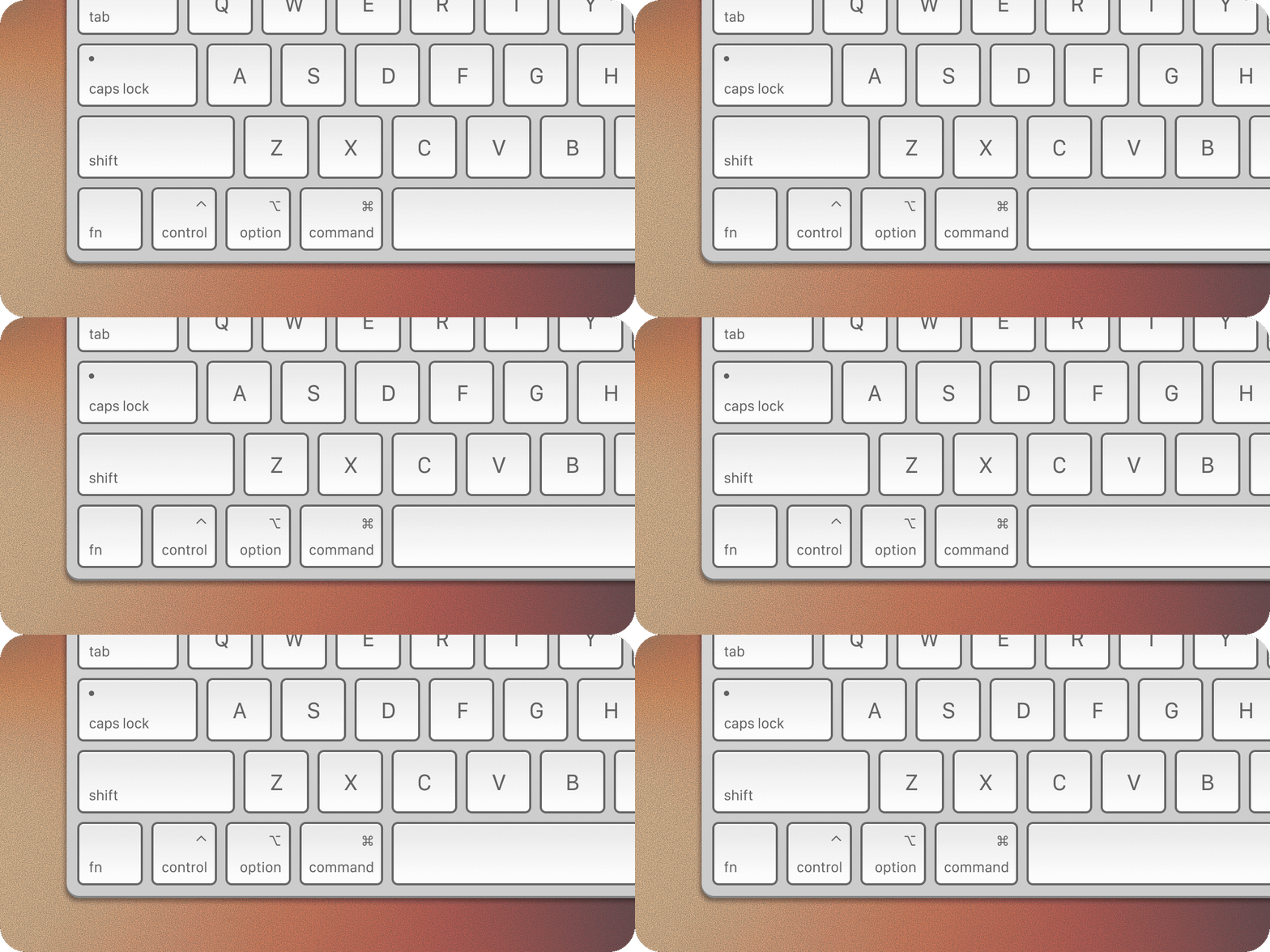
The menu bar
Soda’s icon sits in the menu bar at the top of your screen. Click it to see your most recent memories, newest first. It’s a quick way to glance at what Soda has learned lately without opening anything. Click Home to open Soda.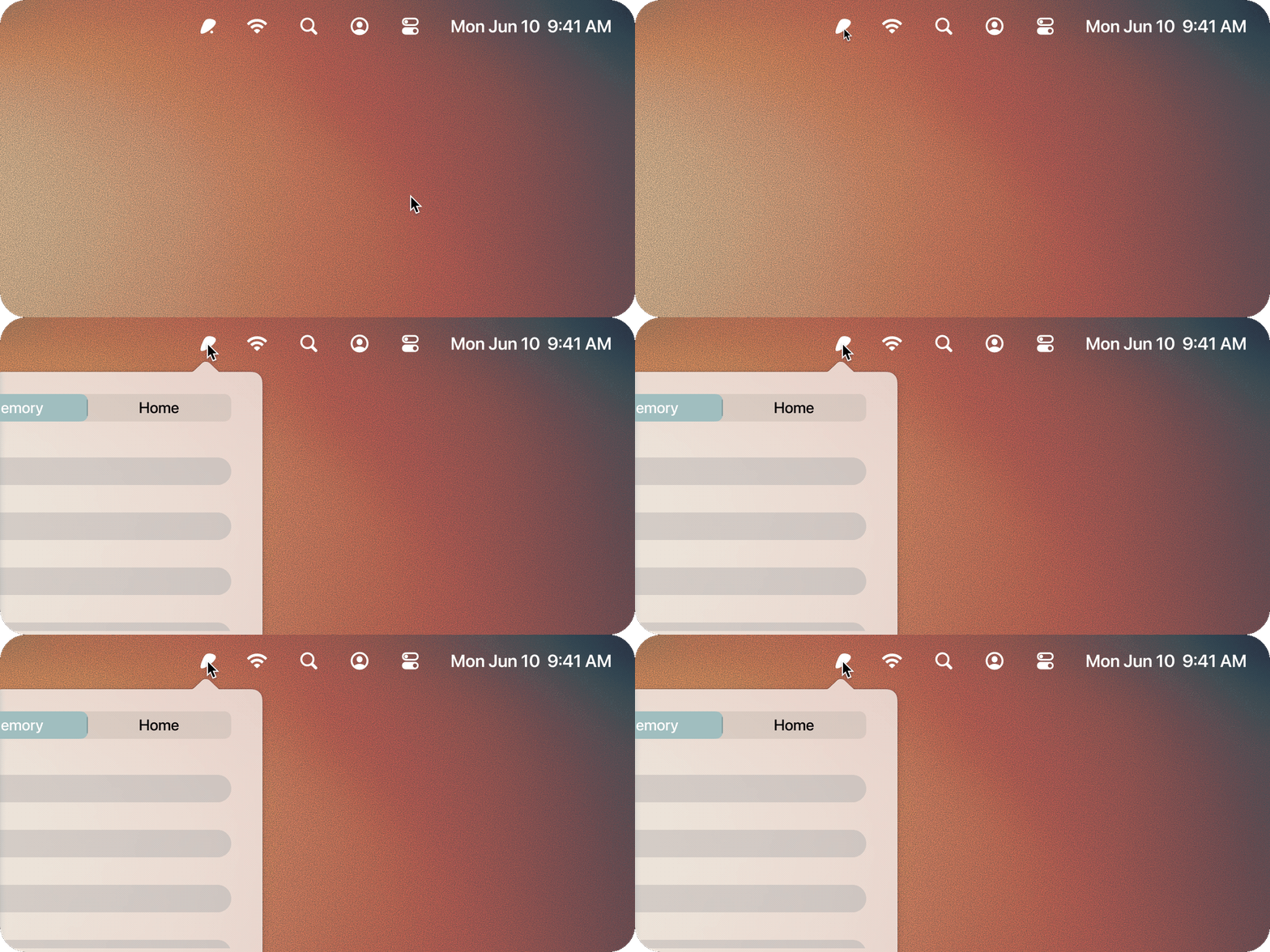
The bottom-left corner
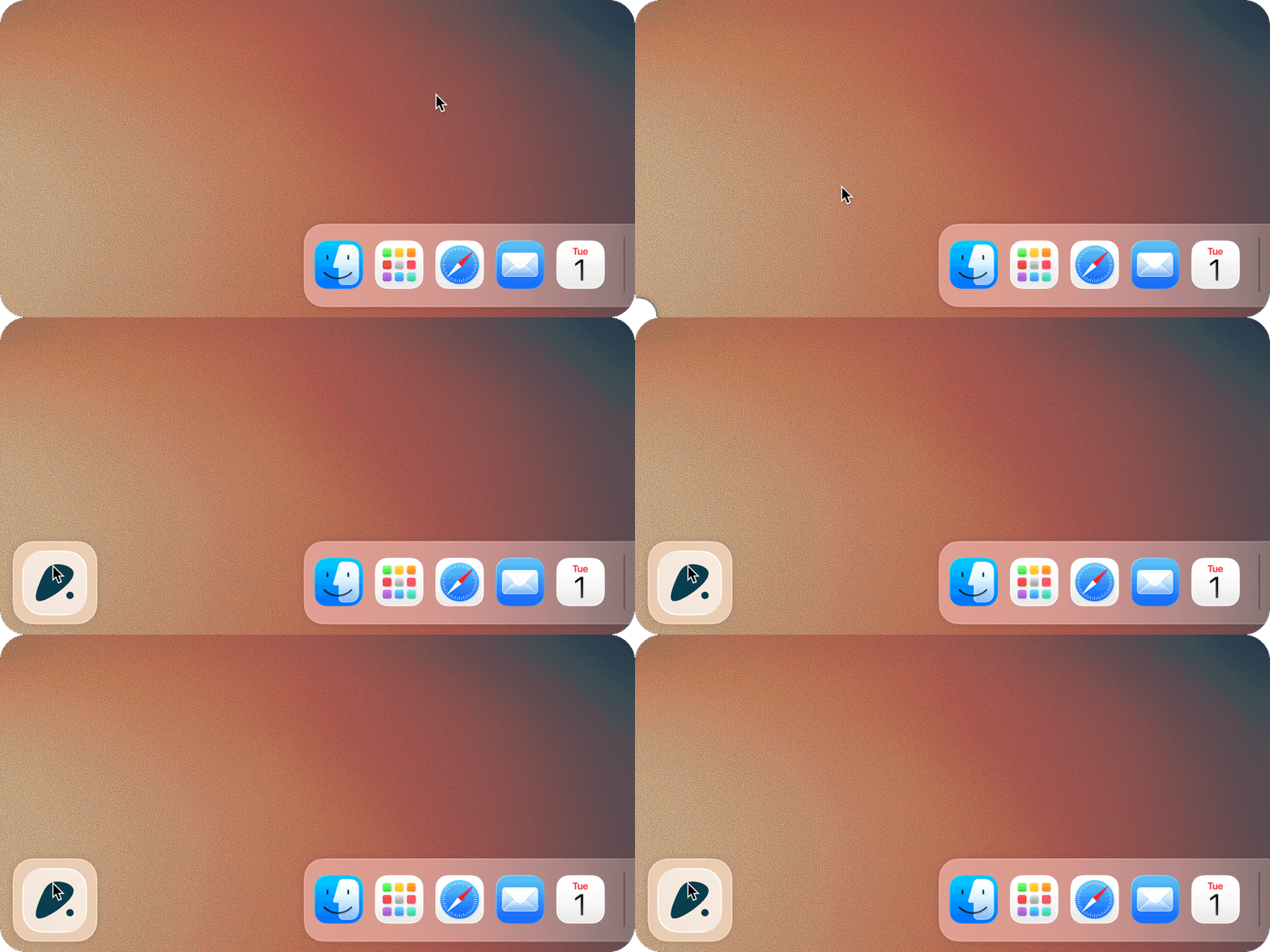
We call it the hot-corner, because it’s 🔥Soda keeps a set of shortcuts in the bottom-left corner of your screen, so everything you need is close by without opening a window. Whenever you’re on a call, they appear by themselves, so they’re always to hand when it matters most. The rest of the time, move your pointer into the bottom-left corner and the Soda icon slides in. Click it to see your shortcuts. It works on whichever screen your pointer is on.
- Home brings up the Soda window.
- Search opens the same command bar as ⌘⌘, for when you’d rather click than tap.
- Create Note starts a note, handy mid-call for anything you want to write down.
- Upcoming meetings shows what’s next on your calendar, so you can see your meetings and join them from one place.
Want a notepad to open every time you join a meeting? Choose it in Settings > Preferences > Quick join meetings. Learn more about upcoming meetings and quick join.
- During a call, the Recording Meeting tile lets you pause Soda at any moment, for example if the conversation turns to something sensitive. Click it to pause or resume, or right-click for Privacy Settings…. See Pause Soda during a call.
Don’t see Soda in the corner? It’s hidden when your Dock is on the left side of the screen, or when an app is full screen.
The Soda home window
The Soda window is where your memories and contacts live. Open it from Home in the menu bar, or Home in the bottom-left corner. While it’s open, Soda’s icon also shows in your Dock. The sidebar takes you to Inbox, Memories, and Contacts. Inbox is where things your teammates share with you arrive. Memories holds every call, email, and note Soda has learned from. Contacts lists the people Soda has built a memory for. Click New Notepad to start a blank note. Notes open in their own window, and you’ll find them again in Memories. The search box at the top of each page filters what’s on that page.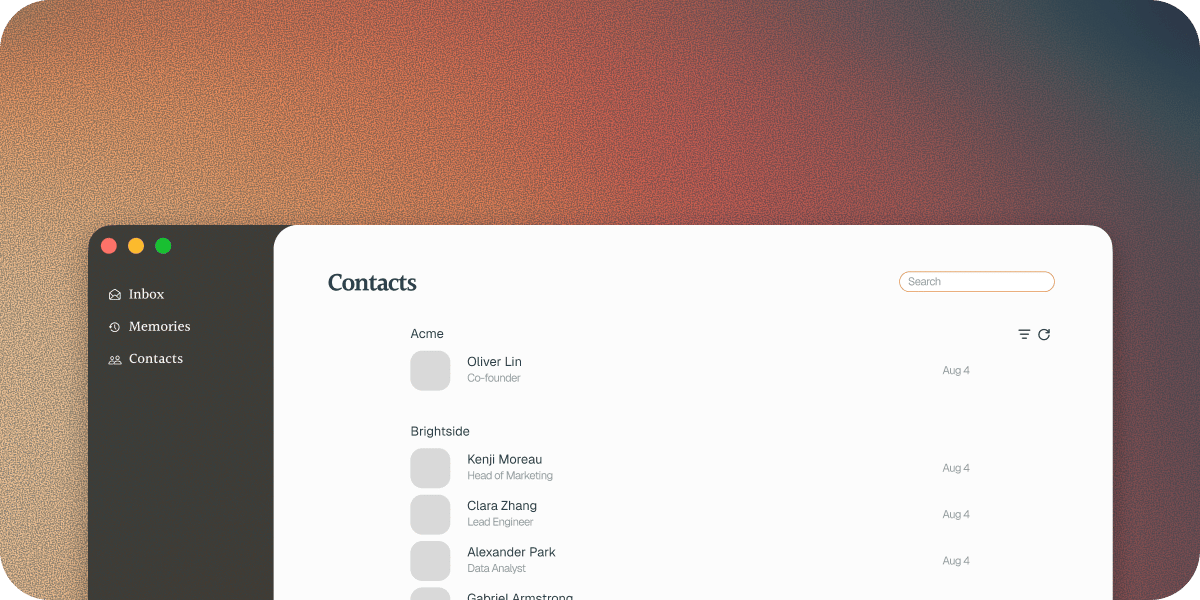
Settings
Click your name at the bottom of the sidebar for Settings, Log out, Quit, and Check for updates. Closing the Soda window does not stop Soda. The Dock icon goes away, and Soda keeps running in the background, ready for your next call. If you choose Quit, Soda stops, and won’t pick up calls until you open it again. Soda will reopen itself when you next log into your computer.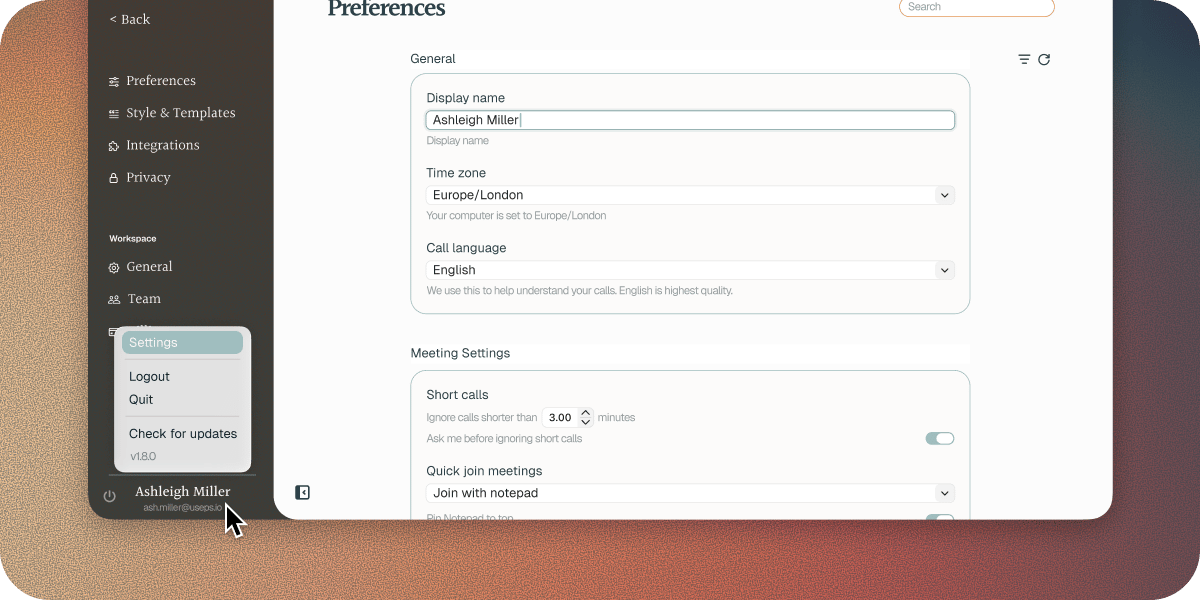
Next steps
Your first call
What happens when you join a call with Soda running.
Search with ⌘⌘
What you can ask, and how to get the most from it.