

Your calls, emails, notes, and customer profiles are your own. Bringing your team into Soda doesn’t change that. Being in the same workspace shares nothing by itself, and admins can’t see your memory either, unless you share it with them. You choose what your teammates see.
Why share with your team
Customers rarely deal with one person. A prospect might talk to a BDR first, then an AE, then customer success once they sign. When each person starts from scratch, it feels disjointed to the customer. They repeat themselves, and context gets lost along the way. Say Geoff at Acme has spent three months talking to your AE about their rollout. The deal closes, and Acme moves over to customer success. Your AE shares Geoff’s profile with the customer success manager, who walks into their first call already knowing the story: who’s involved, what Geoff cares about, and what was agreed. Geoff doesn’t have to explain it all again. That’s how your team works from one picture of each customer. A share arrives in your teammate’s Inbox. See how to share with a teammate.Set up your team
1
Choose who can join
In Settings > Workspace > General, check that your company’s email domain is under Allowed Domains. See how Workspaces work.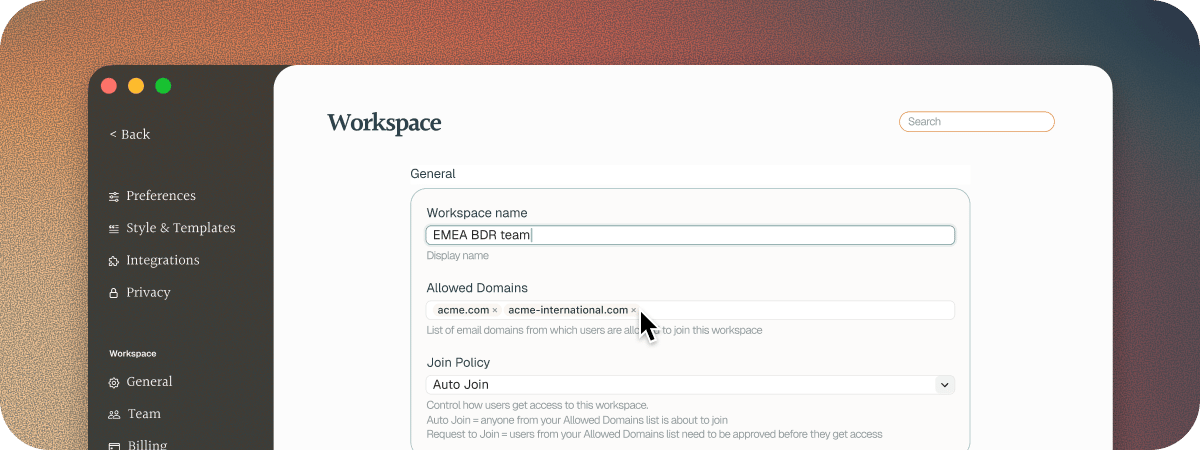
2
Invite your teammates
Go to Settings > Workspace > Team and click Invite Teammate. Add their email addresses, or pick from the people Soda suggests. Then click Invite, and each of them gets an email to join. See Workspaces.
Next steps
Sharing
Share a customer, so whoever picks them up already knows the story.
Search with ⌘⌘
Ask Soda about any customer, including the ones your teammates share with you.