

Connect a calendar
- Google
- Outlook
- Apple
Your Google Calendar is connected when you sign in with Google. To add another Google account:
1
Open Integrations
Go to Settings > Integrations.
2
Click Connect
Click Connect next to Google Calendar. Your browser opens.
3
Allow the permissions
Choose your account. Google then asks what Soda can access.Tick the box next to See and download any calendar you can access using your Google Calendar, then click Continue. Without this, Soda can’t see your upcoming meetings.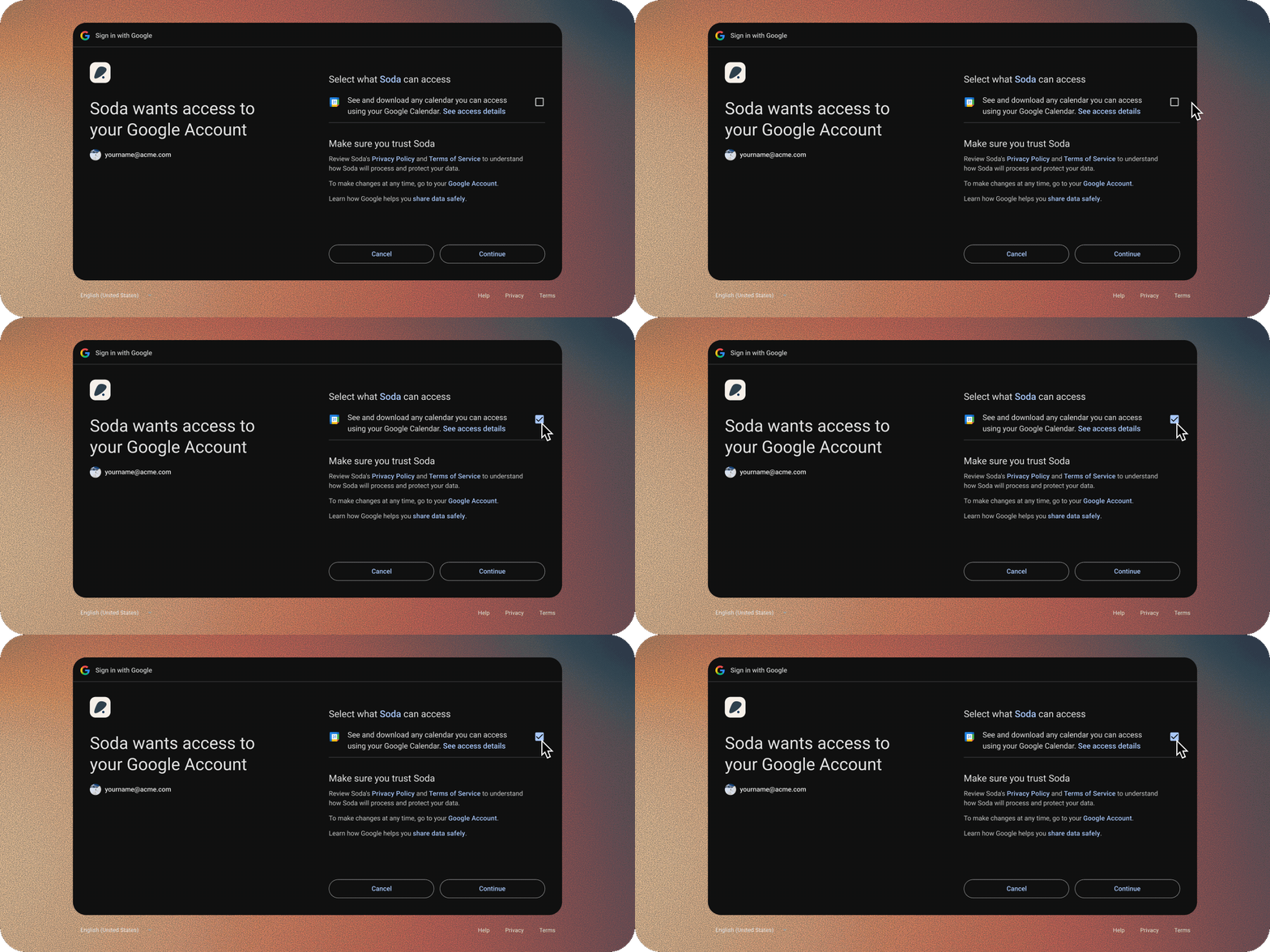
More than one account
Connect as many calendar accounts as you like. Each one gets its own row under Connected tools. Soda reads every calendar in each account.Disconnect, and what happens to your data
For Google or Outlook:1
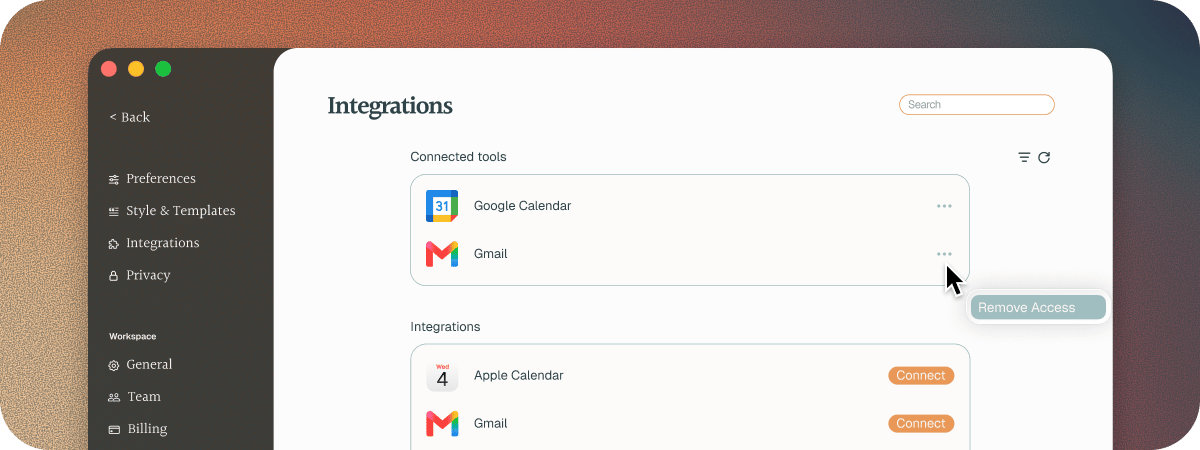
Open the menu
In Connected tools, click ⋯ on the account’s row.
2
Choose Remove Access
Soda asks you to confirm.
3
Click Remove Access
Soda loses access to that account.
Troubleshooting
My meetings aren't showing
My meetings aren't showing
Go to Settings > Integrations. If the account shows Reconnect needed, click ⋯, then choose Reconnect.
Soda says calendar permissions weren't granted
Soda says calendar permissions weren't granted
You connected Google Calendar without ticking the calendar box. Click Reconnect next to Google Calendar in Settings > Integrations, and tick the box when Google asks. See how to tick the calendar box.
Soda couldn't connect my calendar
Soda couldn't connect my calendar
You’ll see a message like “Couldn’t connect Google Calendar. Please try again or contact support.” Click Connect again and finish the steps in your browser. It may have opened in the background. If it keeps failing, contact support.
Next steps
Upcoming meetings
See what’s next and join in one click.
Gmail and Outlook
Learn from email and draft follow-ups in your voice.