

We know these are a lot to ask. An app that wants your microphone, plus a permission with “screen” in its name, should make you stop and think. We’d rather you knew exactly what each one does before you turn it on. Your calls are transcribed on your Mac, and the audio is discarded straight after (no audio leaves your device). No video is recorded, and no screenshots are saved. If you have any questions about how Soda handles your data, message Lloyd, our founder, directly on LinkedIn. You can also read more about how Soda handles your privacy.
Input Monitoring
Input Monitoring lets you ask Soda a question from anywhere by tapping ⌘ twice. Soda only watches for the ⌘ key. It doesn’t log or store anything you type.1
Click Grant Access
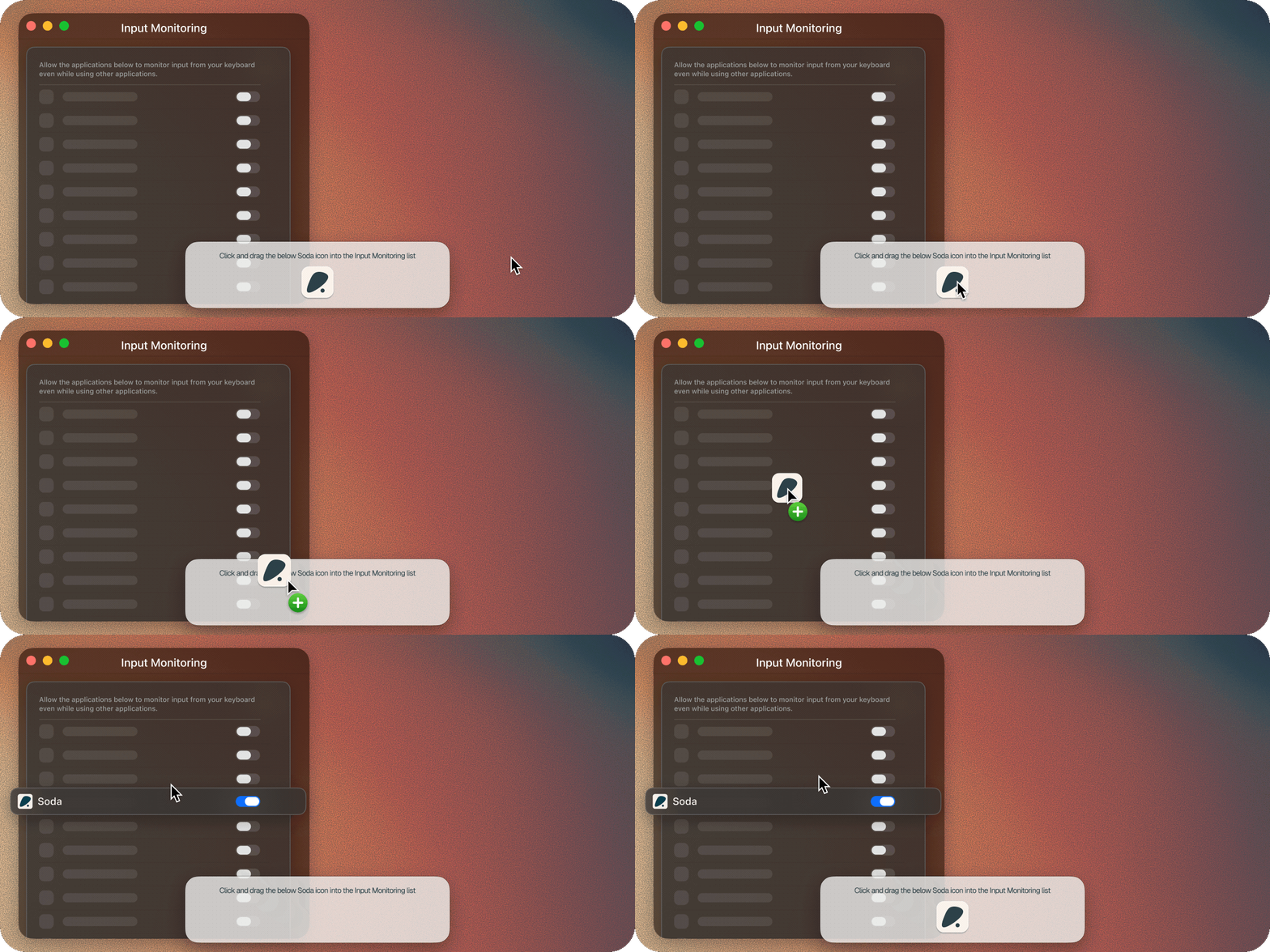
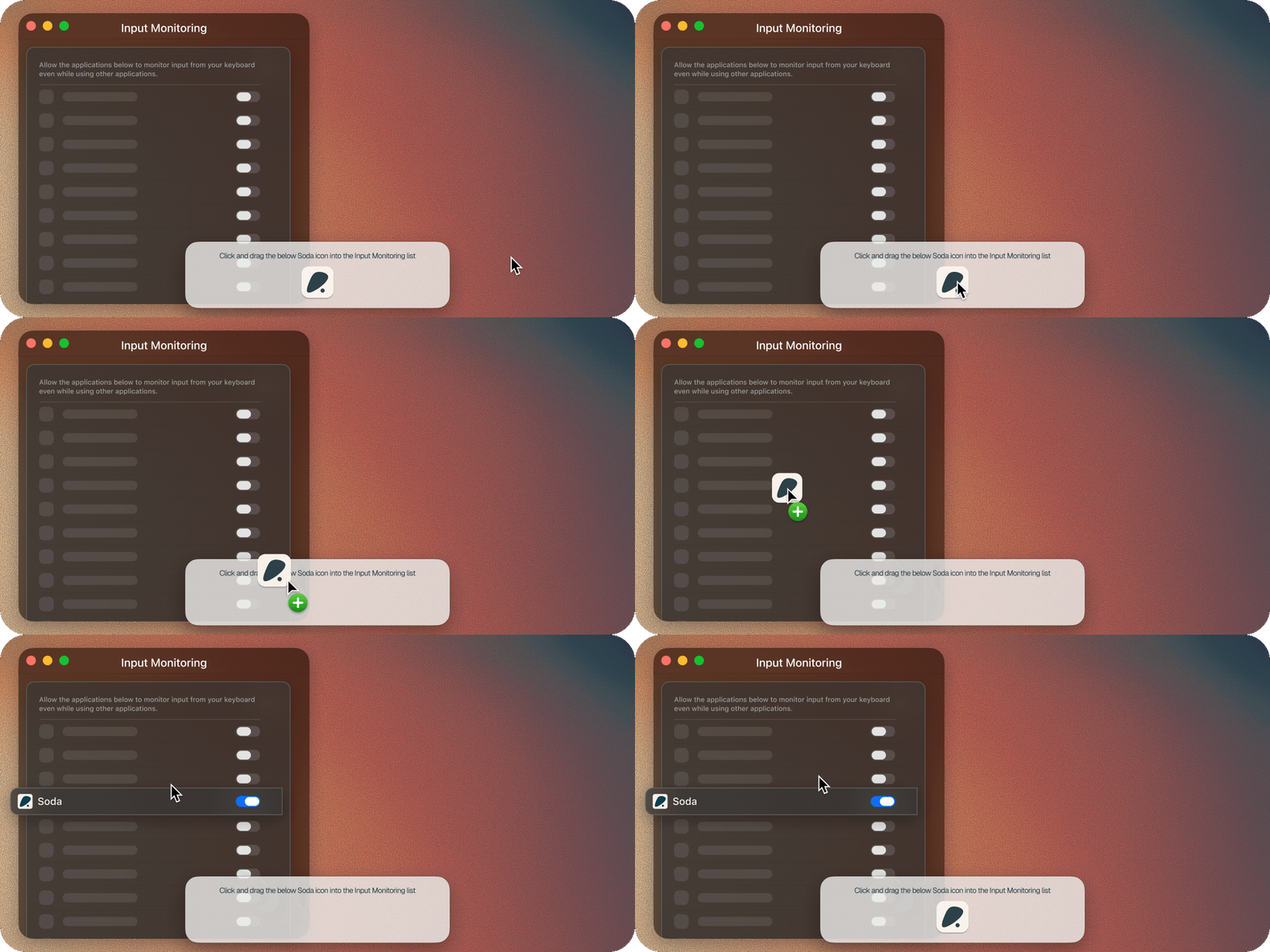
System Settings opens at Privacy & Security > Input Monitoring. A small panel appears with Soda’s icon and the words Click and drag the Soda icon into the Input Monitoring list.
2
Drag the Soda icon into the list
Your Mac may ask for your password or Touch ID.
3
Quit and reopen Soda if your Mac asks
Go ahead. Soda picks up where you left off.
If you’re asked to ‘quit and reopen’ you will see Soda close for a few moments before opening back up. It usually reopens within 10 seconds. It will reopen automatically on the next step in the onboarding journey.
Accessibility
Accessibility is how Soda knows you’re on a call and who’s in it. It reads the names of the people in your meeting window, and the window’s title, so action items and details land on the right person. Soda doesn’t read your messages, your documents, or anything else on your screen, and no screenshots are saved.1
Click Grant Access
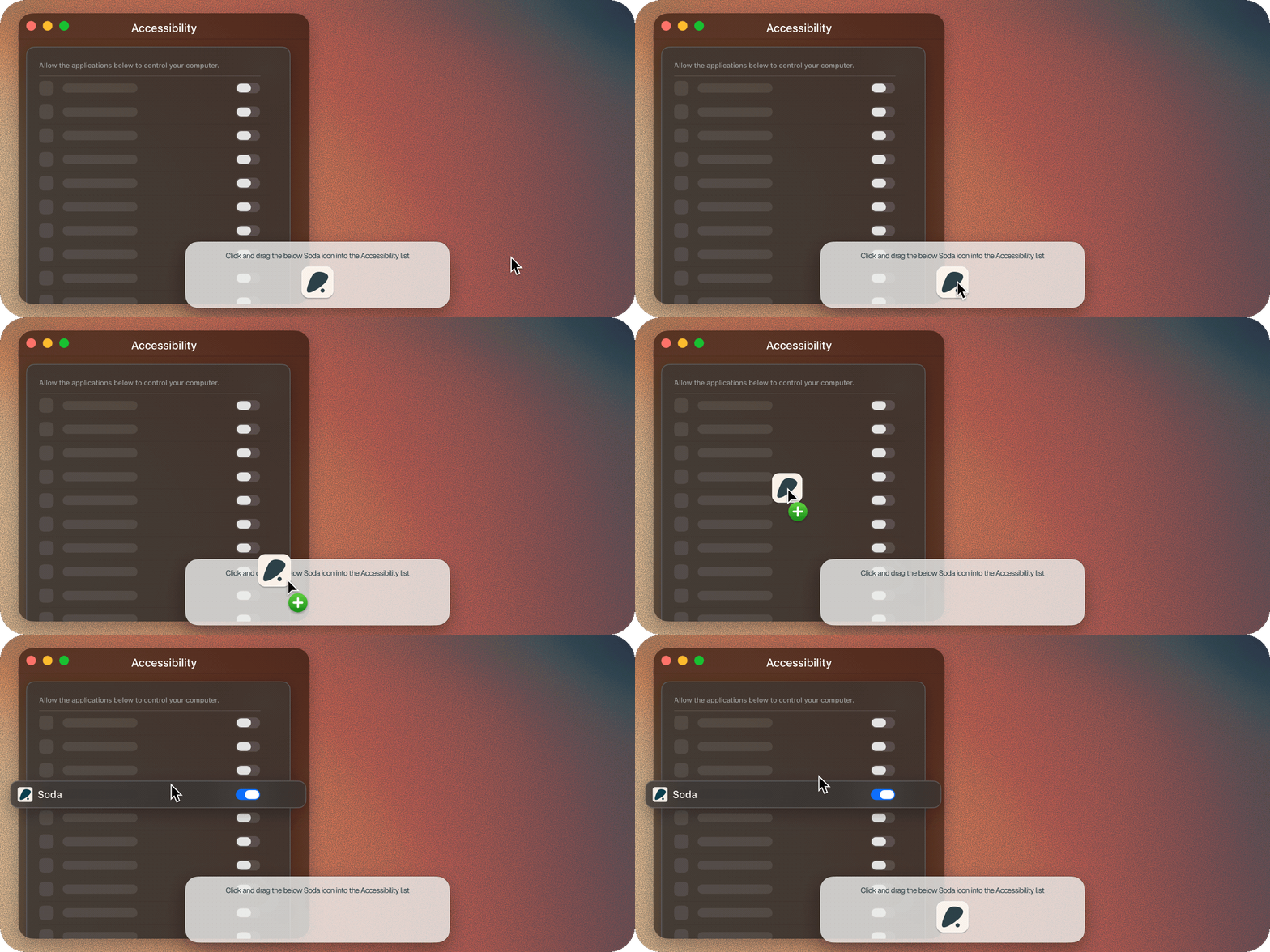
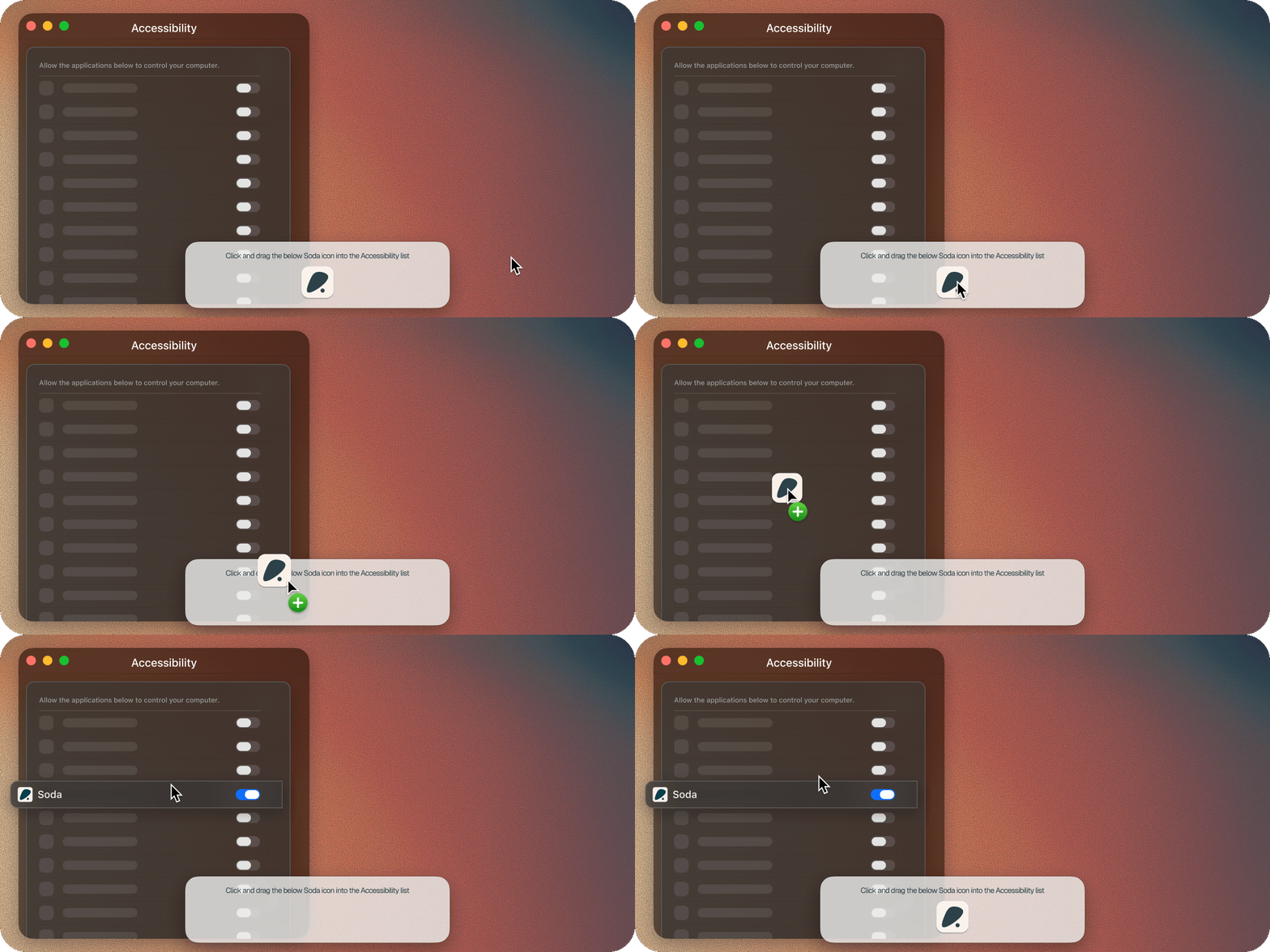
System Settings opens at Privacy & Security > Accessibility. A small panel appears with the words Click and drag the Soda icon into the Accessibility list.
2
Drag the Soda icon into the list
Your Mac may ask for your password or Touch ID.
3
Quit and reopen Soda if your Mac asks
Soda picks up where you left off.
Microphone
The microphone is how Soda hears your side of the call. Soda only uses the microphone while you’re on a call, and the audio is discarded once it’s transcribed.1
Click Grant Access
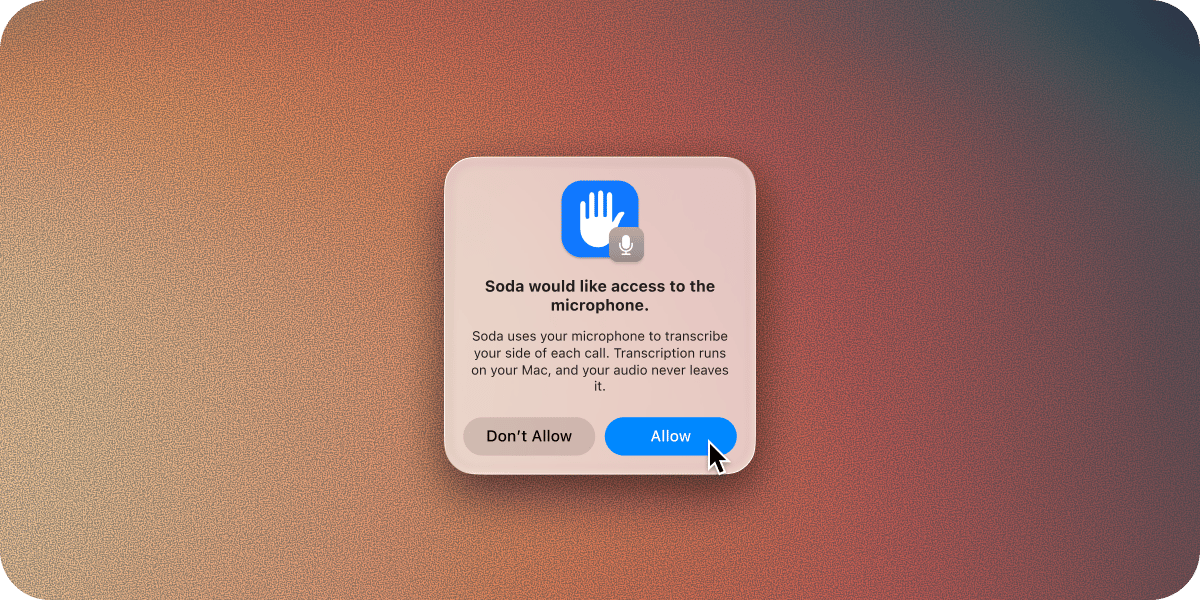
Your Mac shows a pop-up asking if Soda can use the microphone.
2
Click Allow
Soda moves on to the last permission.
Screen and System Audio Recording
This is how Soda hears the other people on your call. Macs file the sound coming out of your speakers under the same setting as screen recording, which is why the name sounds bigger than what Soda uses it for. Soda uses it for sound only. No video is recorded, and no screenshots are saved.1
Click Grant Access
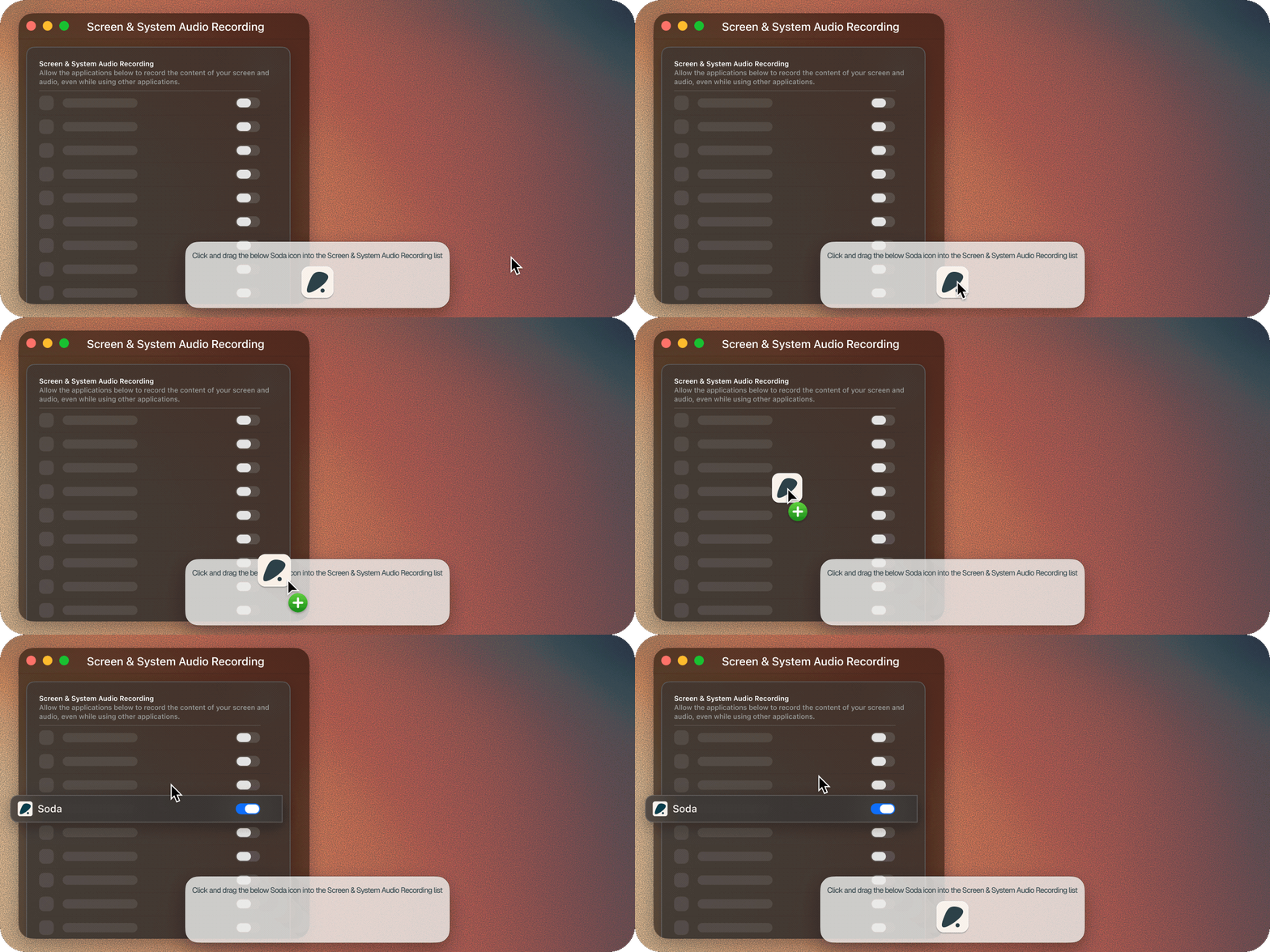
System Settings opens at Privacy & Security > Screen & System Audio Recording. A small panel appears with the words Click and drag the Soda icon into the Screen and System Audio Recording list.
2
Drag the Soda icon into the list
Your Mac may ask for your password or Touch ID.
3
Quit and reopen Soda when your Mac asks
Your Mac will very likely ask this time. Soda picks up where you left off.
On macOS Sequoia and later, your Mac may now and then ask you to confirm Soda can keep accessing your screen and audio. This is a normal Mac reminder. Allow it, or Soda will stop hearing the other people on your calls.
Later: browser access
You won’t see this during setup. Shortly after you first open a supported browser with Soda running, your Mac asks once whether Soda can access that browser. This is one of the signals Soda uses to notice when you join a meeting, like Google Meet, Zoom, or Teams on the web. Soda only reads the address of the tab, to spot a meeting link. It doesn’t read the pages you visit, and it doesn’t store your browsing. Your Mac’s prompt says Soda “wants access to control” the browser, which sounds much broader than what Soda does with it. Safari, Google Chrome, Microsoft Edge, Brave, Arc, and Vivaldi each ask once. Firefox and Opera don’t use this permission. When your Mac asks, allow it. Without it, Soda won’t notice meetings in that browser. If you said no, here’s how to turn it on.1
Click Grant Access
The next time Soda checks that browser, it shows Enable Browser Access. Click Grant Access.
2
Turn on the browser
System Settings opens at Privacy & Security > Automation. Find Soda and turn on the browser.
Using Safari for meetings? There’s one more step, turning on Soda’s Safari extension. See Set up Safari.
If you said no to a permission
Nothing’s broken. You can turn any permission on later. The easiest way is to quit and reopen Soda. It takes you back to that permission’s screen, so you can click Grant Access and follow the steps above. For browser access, Soda asks again the next time it checks that browser. You can also turn it on yourself in System Settings.1
Open System Settings
Choose Apple menu > System Settings, then click Privacy & Security.
2
Click the permission
For example, Microphone, Accessibility, or Automation for browser access.
3
Turn on Soda
For Automation, find Soda and turn on the browser instead. If your Mac asks, quit and reopen Soda.
If Soda stops working after a macOS update
Big macOS updates sometimes switch permissions off. The next time you open Soda, it takes you back to the permission screen for anything that’s off. Click Grant Access and follow the steps for that permission above. If your calls stop working and Soda hasn’t asked, quit and reopen Soda so it can check. If Soda heard you but not the people you were talking to, see Soda only heard me, not the other person.If a switch is on but Soda still asks for it
Try these in order, and stop when it works.1
Quit and reopen Soda
Some permissions, Input Monitoring especially, only take effect after Soda restarts.
2
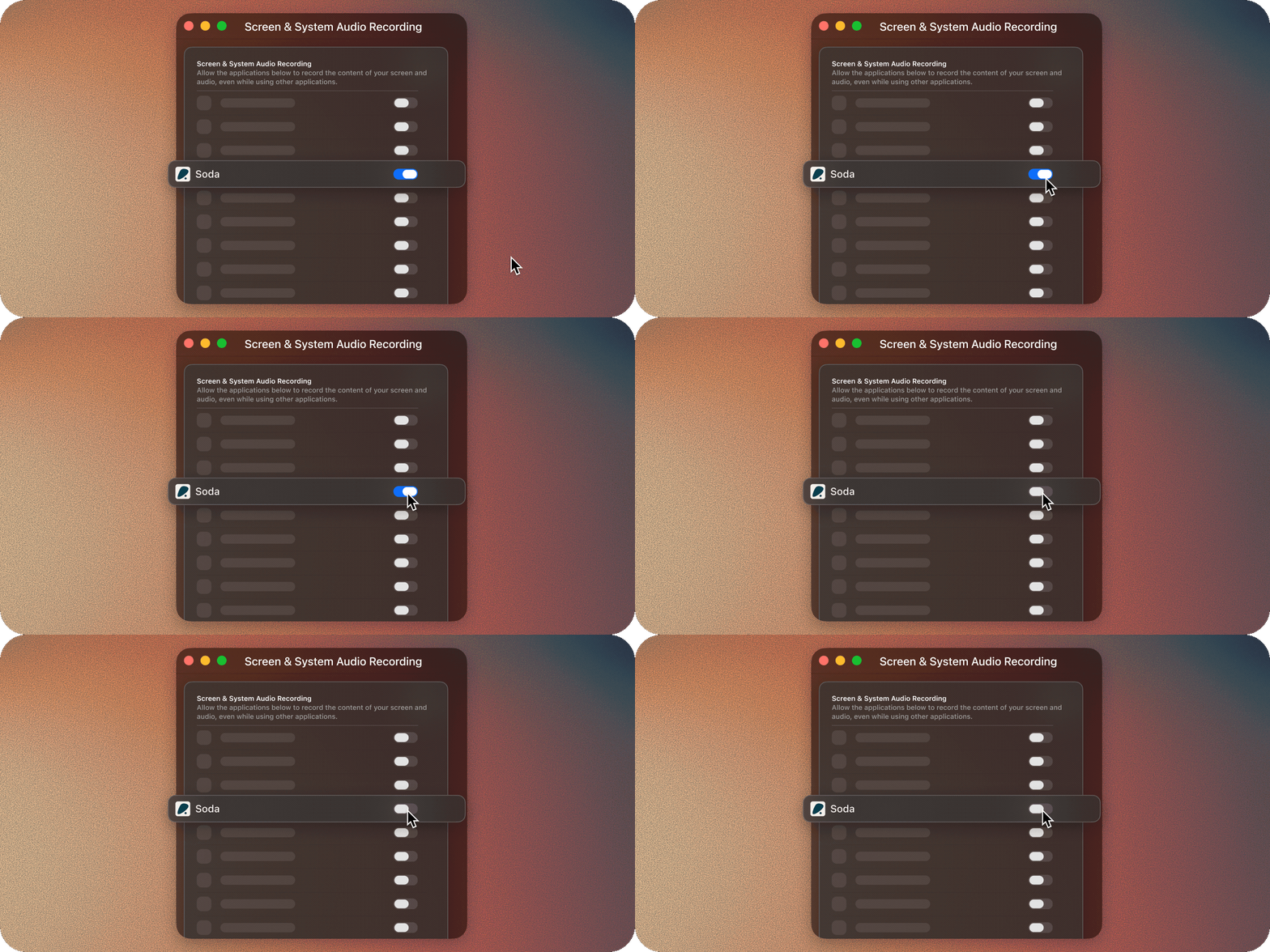
Turn Soda's switch off, then on again
In System Settings > Privacy & Security, open the permission and turn Soda off, then on again.
3
Remove Soda and add it back
If Soda appears twice in the list, or it still doesn’t work, select Soda and click the minus button. Then reopen Soda and grant the permission again from setup. For browser access, Soda asks again later.
Questions
Is Soda recording my screen?
Is Soda recording my screen?
No. Screen & System Audio Recording is how Macs let an app hear the sound your computer plays. Soda uses it for sound only. It records no video and saves no screenshots. For the full picture, see What Soda captures, and what it never does.
Is Soda reading my browsing?
Is Soda reading my browsing?
No. It only checks the address of the tab you’re on, to spot a meeting link. Nothing about your browsing is stored.
Is Soda listening all the time?
Is Soda listening all the time?
No. Soda only uses the microphone while you’re on a call.
Can my company's IT team manage these permissions?
Can my company's IT team manage these permissions?
Yes. IT teams can manage Mac app permissions for Soda the same way they do for any other app. If a switch is greyed out or you can’t change it, your company manages it, so ask your IT team to allow Soda.
Next steps
Your first call
What happens when you join a call with Soda running.
What Soda captures, and what it never does
Everything Soda keeps, and where the line is.