

And Soda never sends emails from you automatically. Every email stays in your drafts folder until you press ‘send’.
Choose a style for each draft
When a draft is open, click Style to choose how it sounds. Soda rewrites the draft to match.- The style with your name on it, like Anna’s Style, is your own voice. It uses your Voice Profile.
- Concise & Direct, Warm & Casual, and Formal are fixed styles. They set your voice aside for that one draft. Handy when you want something different from your usual, like a formal note to a customer’s legal team.
- Edit learned writing style opens Settings > Style & Templates.
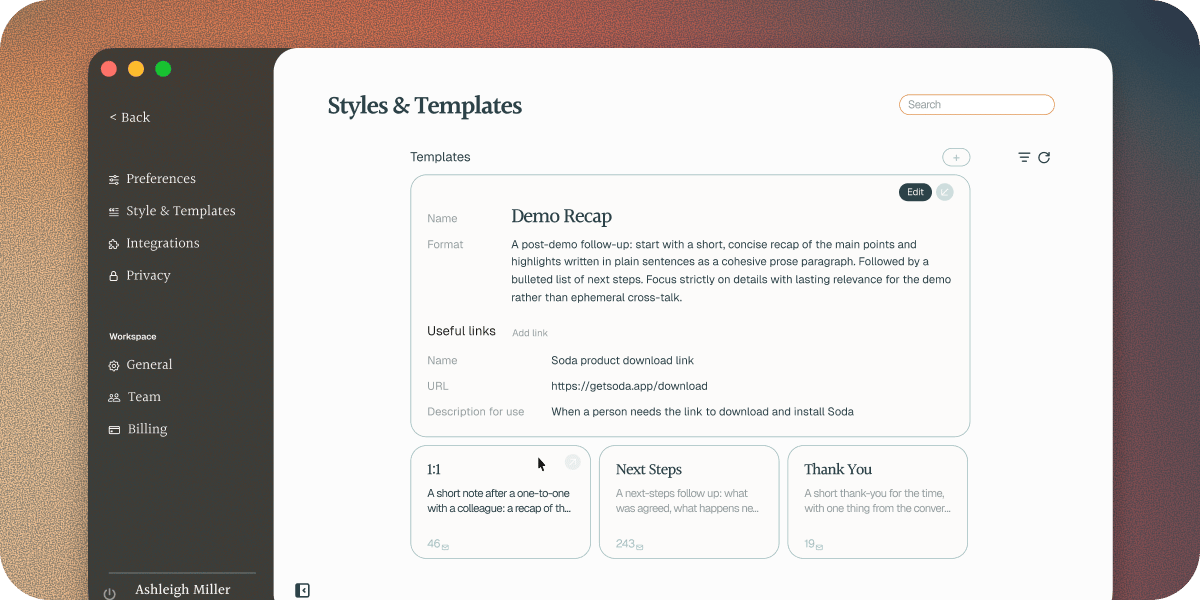
Templates
Your style decides how a follow-up sounds. A template decides what it covers and it’s structure. Soda comes with five:- Next Steps lists what was agreed, what happens next, and who’s doing what.
- Meeting Recap is a fuller write-up of what you discussed and decided.
- Demo Follow Up recaps the highlights of a demo, then lists the next steps.
- Thank You is a short thank-you for the one thing that mattered most, with one next step at most.
- 1:1 is for a catch-up with a colleague: blockers, issues, next steps, and who owes whom what.
Make your own template
Have an email you write again and again, like a renewal check-in or a welcome for a new customer? Make it a template.1
Add a template
In Settings > Style & Templates, click + next to Templates.
2
Name it
Type a Name, like “Renewal check-in”.
3
Describe what it covers
In Format, describe what the email should cover, the way you’d brief a colleague. For example: “Thank them, restate what we agreed, get them set up, and make it clear how to reach me.”
4
Add useful links
Add any Useful links you want Soda to have on hand. See the next section.
5
Save it
Click Save.
Add useful links
Add frequently used links directly into the template for Soda to use (i.e. your calendar booking link, pricing page, or onboarding docs). Give each one a Name, its URL, and a Description for use that says when it’s needed, like “For people to book meetings in my calendar”. Soda only adds a link when the conversation calls for it. Sally asks for time with your team next week? Your booking link is in the draft.Troubleshooting
The draft doesn't sound like me
The draft doesn't sound like me
Tell Soda what’s off in Personal Voice, in your own words, or rebuild your Voice Profile. See shape it in your own words. For a single draft, you can also try one of the fixed styles.
The draft is too long or too short
The draft is too long or too short
Pick a different Style or Template. Concise & Direct and Thank You keep things short. Meeting Recap gives you more. To change the length of every draft, say how long you like your emails in Personal Voice.
The wrong people are on the email
The wrong people are on the email
Soda addresses each draft to the people it knows were on the call. Open the call in Memories to check who’s listed. You can also add or remove people in Gmail or Outlook before you send.
Something from the call is missing
Something from the call is missing
Soda writes the draft from the call’s write-up. If a detail isn’t in the write-up, it can’t go in the email. Add it to the draft before you send, and to the call’s notepad so it’s in your memory too.
Next steps
Your Voice Profile
How Soda learns to write like you, and how to shape it.
Draft your first follow-up email
Ask Soda for a draft, and open it in Gmail or Outlook.
Gmail and Outlook
Connect your mailbox, and see what Soda reads.
What Soda captures
What Soda reads and keeps, and what it never does.