

Written in your voice
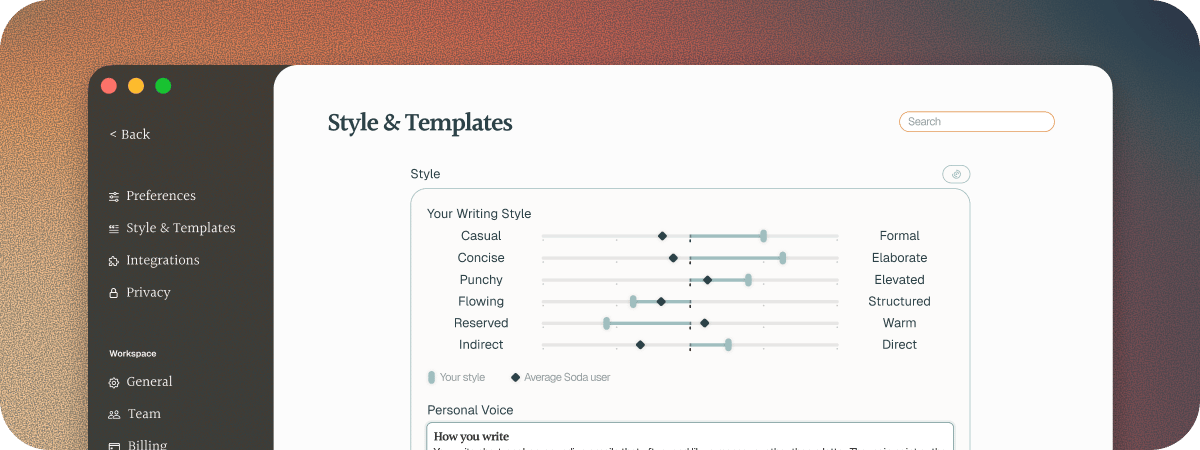
Your customers know how you write, so a generic email stands out. That’s why Soda learns your style. When you connect your email, Soda reads what you’ve written in the past and builds your Voice Profile. It picks up things like:- How you structure sentences
- The style language you use
- How you format an email
- Your usual greetings and sign-offs
- And much more
Draft a follow-up
1
Ask Soda for a draft
In Memories, click the envelope icon on the call, Draft follow up email. Or open the call’s notepad and choose Send follow-up email from its menu.Soda writes the email based on the call: what you agreed, and who’s doing what next. It takes a moment, because it’s written properly from the whole conversation.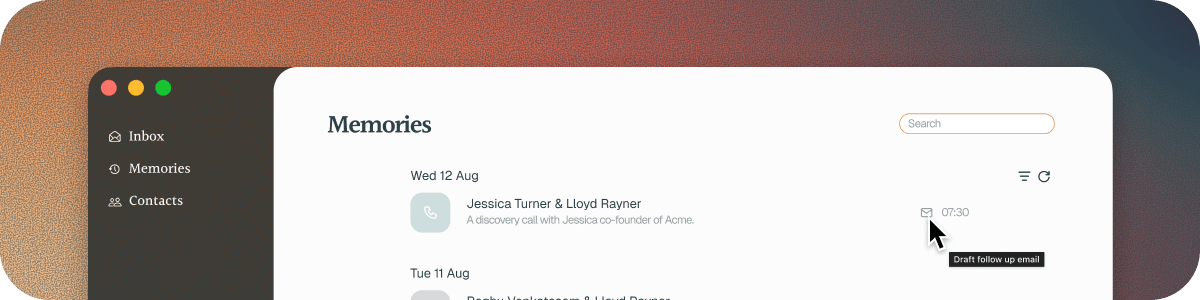
2
Look it over
Want a different feel? Change the Style or the Template, and Soda rewrites the draft to match.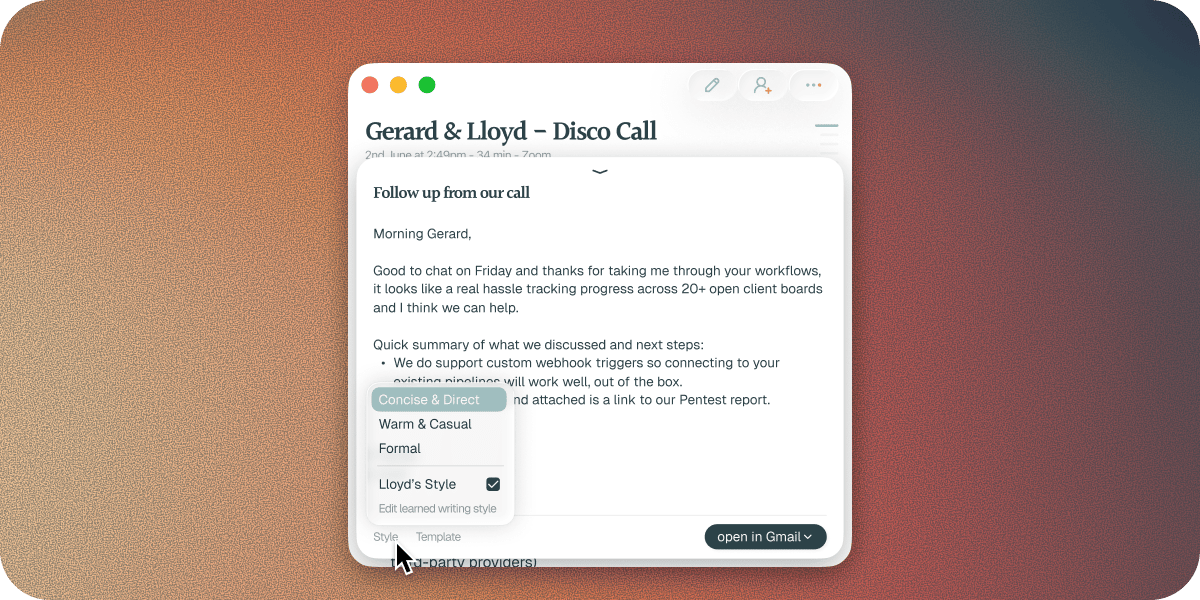
3
Open it in Gmail or Outlook
Click open in Gmail or open in Outlook. Soda saves the email as a real draft in your mailbox, addressed to the people on the call, and opens it for you.
4
Review it and send it
Change anything you like, then send it when you’re ready.
Templates
A template decides what the email covers. Soda comes with five: Next Steps, Meeting Recap, Demo Follow Up, Thank You, and 1:1. You can add your own too, for the emails you find yourself writing again and again.Update your voice
Your Voice Profile lives in Settings > Style & Templates. There you can describe your voice in your own words, rebuild your Voice Profile, and manage your templates. See your Voice Profile and follow-up emails.You always send it yourself
Soda never sends an email for you. Every draft waits in your mailbox until you’re ready to send it. Because nothing goes out without you, the draft can be specific, with real names and real next steps. Soda uses the call to know what to write, and your sent emails to learn how you write it. See what Soda captures, and what it never does.Questions
Why isn't my Voice Profile ready?
Why isn't my Voice Profile ready?
Soda needs at least 20 sent emails to learn your style. If it couldn’t finish, Settings > Style & Templates shows what went wrong, with a button to try again.
What if I didn't connect my email during setup?
What if I didn't connect my email during setup?
Go to Settings > Style & Templates and click Connect inbox. See how to connect Gmail or Outlook.
Why couldn't Soda draft an email for my call?
Why couldn't Soda draft an email for my call?
If you see “Couldn’t draft: nobody on this call has been linked yet”, Soda doesn’t know who was on the call yet, so there’s nobody to write to. This usually means the call is still being processed, or you were the only person on it. Wait until the call has finished processing in Memories, then try again.
What if someone's email address is missing?
What if someone's email address is missing?
Soda addresses the draft to everyone it knows was on the call. If it doesn’t have someone’s email address, add it before you send.
What if the draft doesn't sound like me?
What if the draft doesn't sound like me?
Try another Style. To change your voice for every draft, edit it in Settings > Style & Templates.
Next steps
Follow-up emails in your own voice
Fine-tune your voice, styles, and templates.
Set up Soda for your team
Bring your teammates in, so you all contribute to the same shared memory.