

Find someone
Click Contacts. It lists everyone Soda has a profile for. The list is grouped by Company Name be default. Click the sort icon to order it by Last Interaction Date, First Name, or something else.
Click anyone to open their profile.
The list is grouped by Company Name be default. Click the sort icon to order it by Last Interaction Date, First Name, or something else.
Click anyone to open their profile.
A profile at a glance
The top of a profile tells you the state of the relationship before you read any further. Under their name you’ll see their email address and the company they work at. Click the company to open its profile. Below that is a line like “Last contact 3 days ago · 5 mail · 2 phone”. It tells you when you last spoke and how you’ve been in touch, so you can see straight away whether a relationship is active or has gone quiet.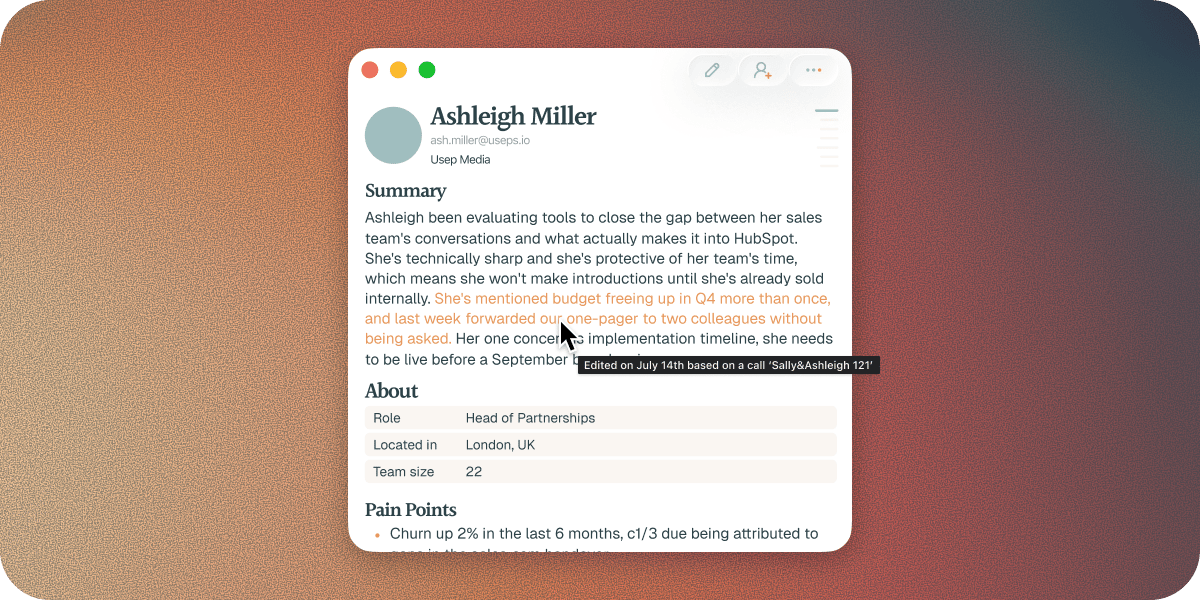
Out of Office
When someone’s away, their profile says so, for example “Out of Office until Fri 2 Oct”. Soda picks it up from their out-of-office reply, or from something they said on a call, like “I’m off all next week”. You won’t chase someone who’s on holiday, and you’ll know exactly when to pick things back up. Hover over the banner to see where it came from. Click × to hide it. It goes by itself once they’re back. If they go away again, you’ll see a new one.What changed on the profile
The +N new badge at the top right show what Soda has learned about this contact since you last opened their profile. Click it to see each new detail. See how profiles stay up to date.Company profiles
To open a company, click the company under someone’s name. Or tap ⌘⌘, type /open, and pick the company. A company’s Contacts section lists everyone Soda knows at the company, with the people you’ve spoken to most recently at the top. Each person shows their job title, when you last spoke, and how many open action items they have. Click someone to open their profile. That’s the whole account on one screen. Before a renewal or a big meeting, you can see who you’ve been talking to, who’s gone quiet, and who still owes you something. Its Communication section brings every call and email with anyone at the company into one list.Keep profiles tidy
Soda keeps profiles up to date by itself. Now and then you’ll want to step in, for example when someone shows up twice or is listed at the wrong company. Each fix takes a few seconds.Change the company on a profile
1
Open the person's profile
Open them from Contacts, or with /open.
2
Click the pencil icon
It’s at the top right of the profile, and turns on editing.
3
Click the company under their name
Start typing the company’s name. A list of matching companies appears.
4
Click the right company
If it isn’t in the list, choose the Create option, for example Create ‘Fenwick’, to add it as a new company.
Merge two profiles for the same person
If the same person shows up twice, merge the two profiles into one.1
Open the profile you want to remove
This is the duplicate. The other profile is the one that stays.
2
Choose Merge… from the notepad's menu
A search box opens.
3
Click the profile you want to keep
Search for them by name if they aren’t in the list.
4
Click Continue
Soda shows which profile is merged into which, and which one will remain.
5
Click Merge
Soda opens the profile you kept.
A merge cannot be undone.
Refresh a summary
Soda updates each person’s summary by automatically, but you can also request an update at any time:- Update adds anything new from recent calls and emails. Use it when the summary hasn’t caught up with a recent conversation. You’ll see “Summary updated”, or “Up to date” if there’s nothing new to add.
- Rebuild writes the whole summary again from everything Soda knows about the person. It takes longer, because Soda reads back through their whole history. Use it when a summary no longer reads right and you want a fresh start. You’ll see “Summary rebuilt” when it’s done.
Delete a contact or company
Right-click someone in Contacts and choose Delete, or choose Delete from their notepad’s menu. Then click Delete again to confirm. For a company, open its profile and use the notepad’s menu. They disappear from your contacts, from search, and from anything you have open. Past calls they were on still show their name, but clicking it won’t open anything.A deleted contact or company cannot be restored.
Troubleshooting
The same person appears twice
The same person appears twice
Merge them into one profile. See merge two profiles for the same person.
Someone is listed at the wrong company
Someone is listed at the wrong company
Change it from the company line under their name. See change the company on a profile.
I can't find someone in Contacts
I can't find someone in Contacts
Soda creates a profile after your first call or email with someone. If you have spoken, check the search box and filters. If you see “No matches”, clear them and try again, or search by their email address.
A profile looks thin
A profile looks thin
A profile fills in with every conversation, so one built on a single email has less to go on than one built on a year of calls. To catch the summary up with a recent conversation, choose Update Summary > Update. If you see “Couldn’t update”, there isn’t enough history yet to write a summary.
Next steps
Notepad
What each section of a profile shows, and how to edit it.
How profiles stay up to date
How Soda keeps every profile current, and shows you what changed.